Memory lets Kiro carry useful context from one chat session to the next. It can remember repository commands and conventions, corrections, debugging insights, approaches already ruled out, and how you prefer to work. When that context matters again, Kiro can use it in later work. You spend less time rebuilding context and more time continuing the task.
Memory is part of the Kiro agent harness, the system that assembles context and runs the agent. It solves two linked problems: deciding what from your work is useful enough to keep, and finding the relevant memory for the task in front of you. Each memory is a record with a title, description, and content, not a copy of a past conversation. Memories are stored locally per user account, not per workspace. Kiro IDE and Kiro CLI on the same machine share the stored memories, but each app has its own Memory setting.
Memory adds learning and recall to the context Kiro already uses:
- Start with the current task. Your request, current conversation, and Steering enter the agent harness as current context.
- Learn from the work. The harness can identify useful context and create or refine a memory.
- Recall when relevant. In a later session, Kiro can retrieve a matching memory while it works on your request.
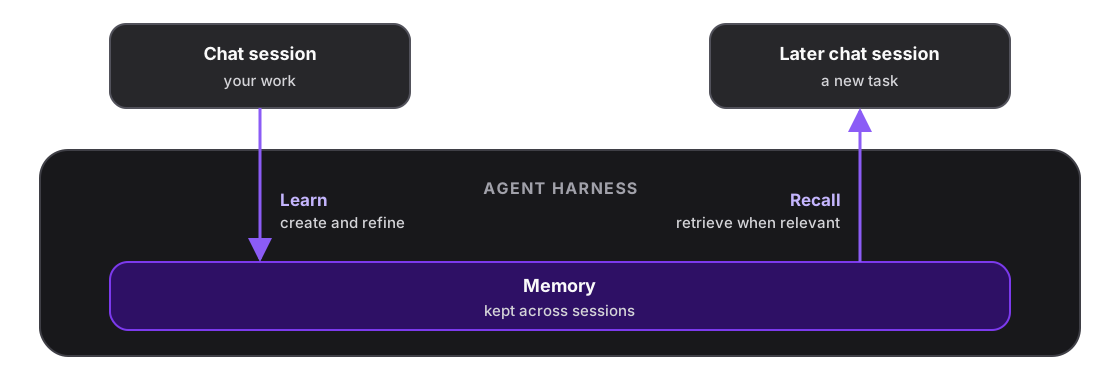
Memory works alongside other context in the agent harness:
- Memory: Context Kiro learns from your work and can recall in a later session.
- Steering: Rules and guidance you write when you want explicit control over what Kiro follows.
- Session history: The conversation and work already in progress when you continue or resume the same session.
- Compaction: A summary of older conversation history that keeps a long session within its context limit.
- Knowledge bases (CLI): Reference material you choose and index for Kiro to search when needed.
These forms of context can work together. Memory adds learned context; it does not replace your current conversation, Steering, or reference material. If a rule must apply consistently, write it in Steering.
Choose your app to see how learning and recall are controlled.
One user setting controls Memory in Kiro IDE. It defaults to Off; choose a level to set how Kiro uses memories. If you already chose a level, your choice is kept across updates.
- Select the Memories icon in the activity bar to open the Memory view.
- Select the Memory settings gear. Settings opens on the Kiro Agent: Memory setting.
- Choose an access level.
| Access level | What it does |
|---|---|
| Use and learn | Kiro uses memories and can change them, subject to your permissions. It also creates and refines memories automatically. |
| Use but don't learn | Kiro uses memories and can change them when you ask, subject to your permissions. It does not create or update memories automatically. |
| Use only | Kiro uses existing memories but never creates, updates, or deletes them, even when you ask. Memory is read-only. |
| Off | Kiro does not use or change memories. This is the default. |
Turning Memory on or off, or switching to or from Use only, applies to new sessions. The IDE shows the notice "Memory settings updated. The change applies to new sessions." with a Start new session action. Switching between Use and learn and Use but don't learn takes effect immediately in open local sessions.
The Memory setting is a user setting. A value in workspace settings has no effect.
Choose your app to see how to inspect stored memories.
Select the Memories icon in the activity bar to open the Memory view. It lists Global memories and memories scoped to the repositories open in the current window.
Each memory has a type, which identifies what kind of information it holds, and a location, which shows where it applies: Global or the name of a repository. Most memories show the type Preference or Fact. A type the IDE cannot name shows as Other.
- Each row shows the title, how long ago the memory was created, a one-line summary, its type, and its location.
- Type in Search memories... to filter by title or summary. Select All memories to filter by TYPE or LOCATION. The footer shows how many memories are stored, for example
3 of 12 memorieswhile a filter is active. - Select a row to open the memory in an editor tab. The tab shows its type, location, creation time, Summary, and Content, with Refresh and Delete buttons.
- To delete a memory, right-click its row and choose Delete, or select Delete in its tab. Kiro asks you to confirm before it deletes the memory.
- Select Refresh Memories in the view's title bar to reload the list.
You can delete a memory from the Memory view even with Use only. To fix a memory's content, ask Kiro in the chat. Kiro can make the change only with Use and learn or Use but don't learn in a trusted workspace.
Suppose Kiro learns while debugging that a repository's integration tests fail until the local database is seeded. A memory can record that insight. In a later session, Kiro can recall it and seed the database first instead of rediscovering the cause.
When Kiro uses memories, the chat groups that activity into collapsible entries such as Memory accessed (1), Memory created (1), or Memory updated (1). Each entry lists the titles of the memories involved. Hover a title to see the memory's type and summary. In the accessed, created, updated, and listed entries, select a title to open the memory. A Memory deleted entry names memories that no longer exist, and a Memory imported entry names the import source, so their titles do not open.
The debugging example could show:
Memory accessed (1)
seed-db-before-integration-tests
The recalled memory tells Kiro to seed the local database before it runs the integration tests.
A memory call that failed or that Kiro could not confirm appears as its own card instead, such as Couldn't save memory or Memory not saved, with the agent's result text. When available, the card also shows the memory name.
Recalled memories also use context. Select the context usage indicator in the chat input to open Context Usage. A Memory row appears after Steering files when memories use context.
Memory