To connect Okta with your Kiro Profile, you need to:
- Create the OIDC Okta application
- Set up custom scopes for OIDC application
- Set up Kiro Profile
- Create the SCIM provisioning application
When using Okta, you need to create two applications: one OIDC application for user login, and one SCIM provisioning application (using the AWS IAM Identity Center integration from the Okta App Catalog) for synchronizing users and groups to Kiro.
In the Okta Admin Console, navigate to the Applications -> Applications section and select "Create App integration". Select "OIDC - OpenID Connect" for "Sign-in method", and "Native Application" as the Application type.
Loading image...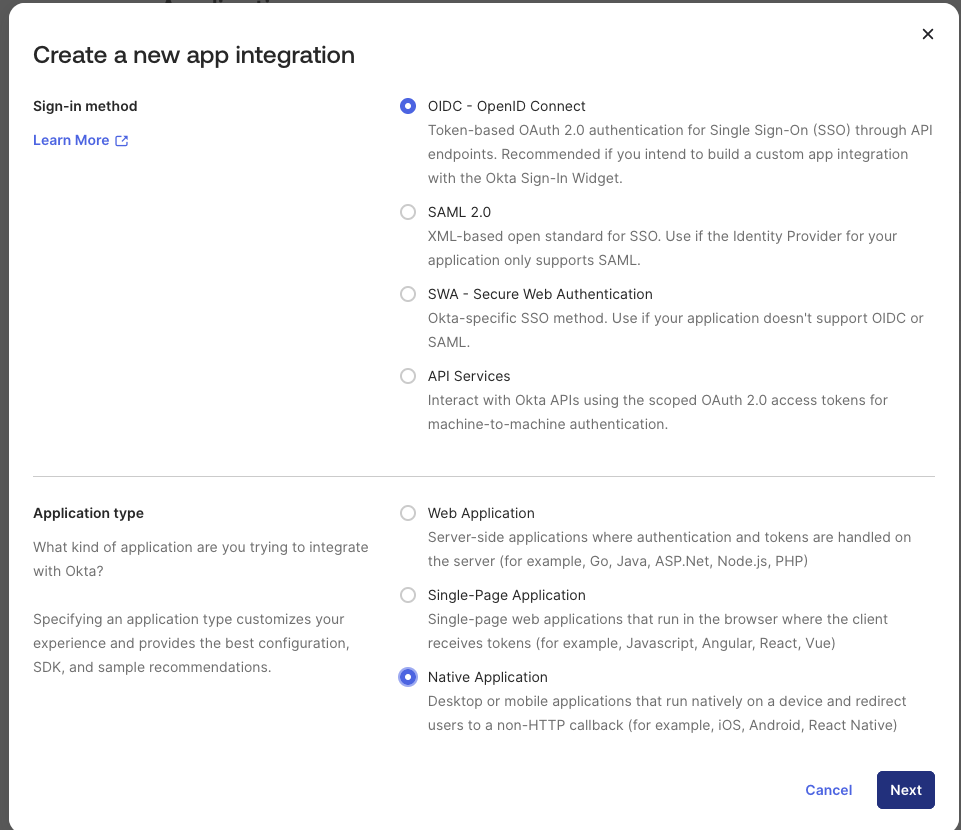
Provide a descriptive name, example Kiro-OIDC, for your application and check the "Refresh Token" checkbox in the "Grant type" field. Leave the default values for all other fields.
First, add kiro://kiro.oauth/callback as a Sign-in redirect URI. This is one of the URIs that Kiro clients will listen to when Okta returns the user after they successfully sign in with Okta.
Next, add 10 additional entries as Sign-in redirect URIs in the following format: http://localhost:{port-number}/oauth/callback, where the port-number is one of the following port numbers - 3128, 4649, 6588, 8008, 9091, 49153, 50153, 51153, 52153 and 53153.
Add https://app.kiro.dev/signin/oauth as another Sign-in redirect URI to support Kiro Web.
Example:
Loading image...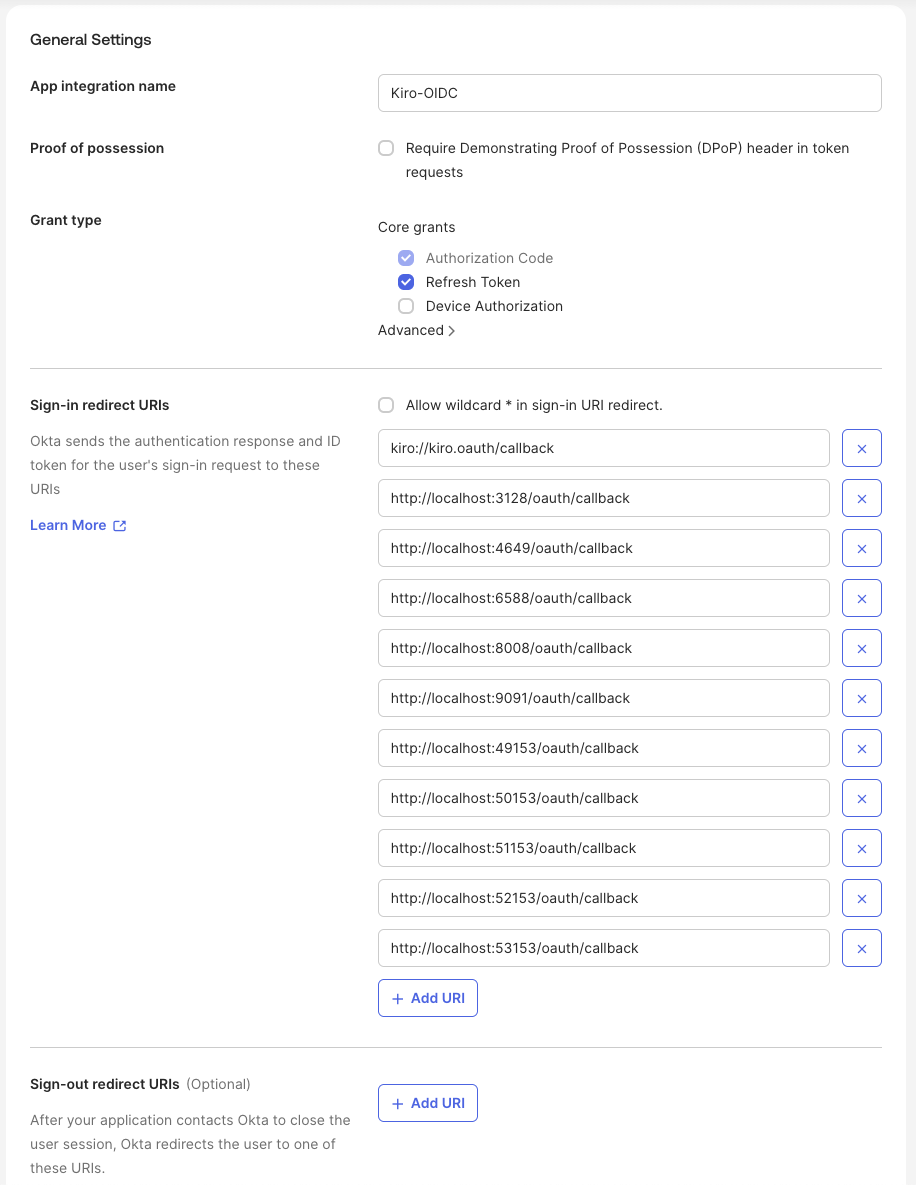
Ensure that "Skip group assignment for now" is selected and select "Save" to complete creating the application. This will show the details of the newly created application.
Loading image...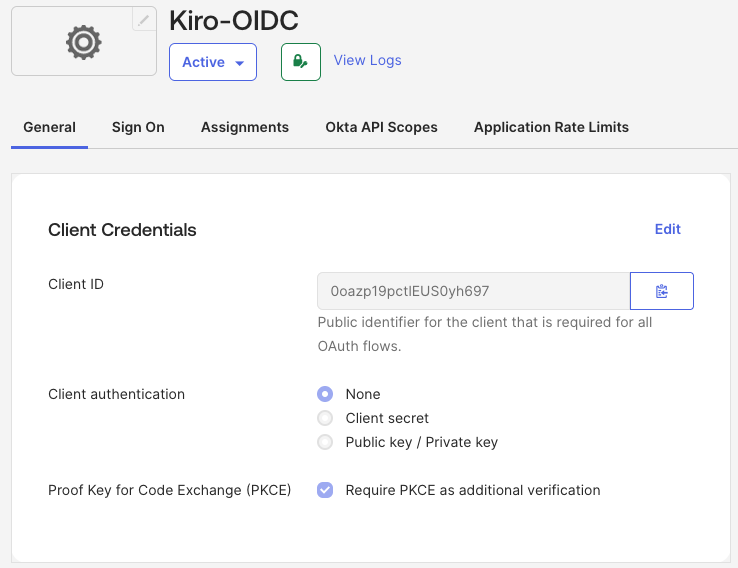
Next, you will add the users and groups that will be part of the application. Select the "Assignments" tab. Select the "Assign" button and follow the instructions to add users and groups that should have access to Kiro.
Loading image...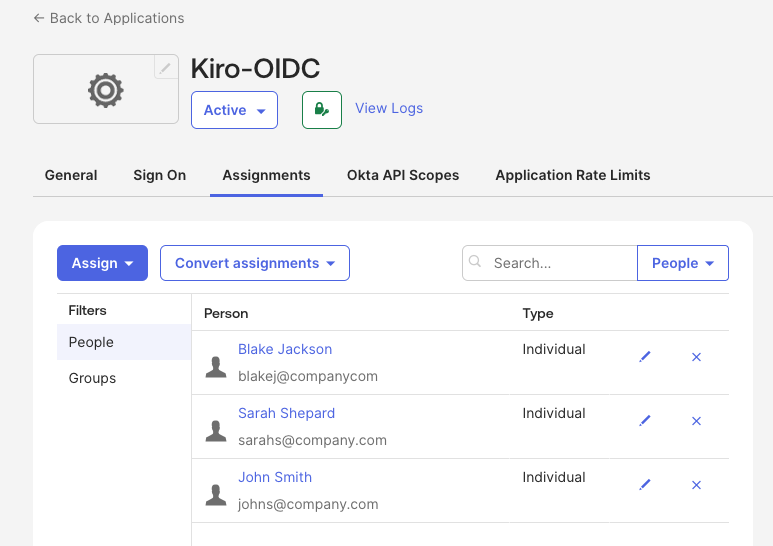
You have completed creating the OIDC application.
Now that the OIDC application has been created, you have to set up the scopes to allow user identities to present the right authorization to access Kiro. You will set up two scopes - completions and conversations.
- codewhisperer:completions — Authorizes the user to access the inline code completion feature in Kiro.
- codewhisperer:conversations — Authorizes the user to access the chat and conversation feature in Kiro.
Only grant the scopes that your organization requires. You should understand the impact of each scope when configuring access policies.
In the Okta Admin console, navigate to the Security -> API section. In the "Authorization Servers" tab, select "Add Authorization Server" button.
Loading image...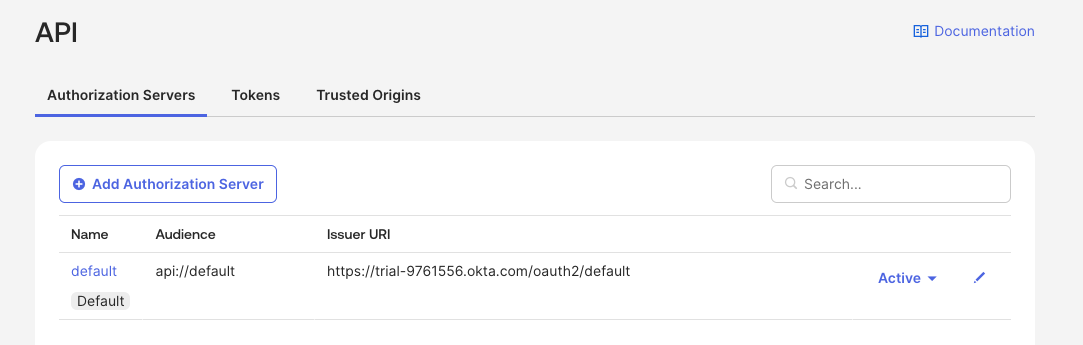
Enter a name and description for the Authorization Server.
Loading image...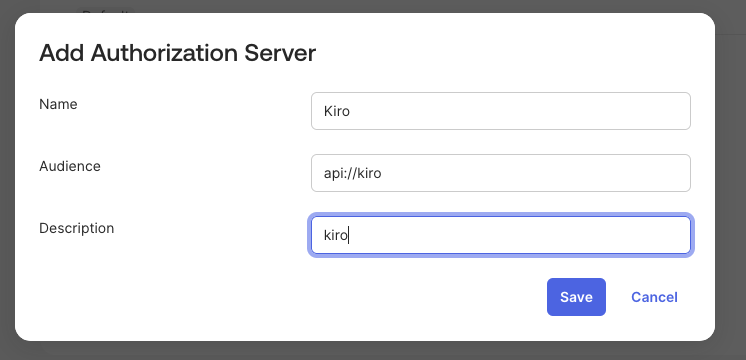
Select "Save" to complete adding the server.
Loading image...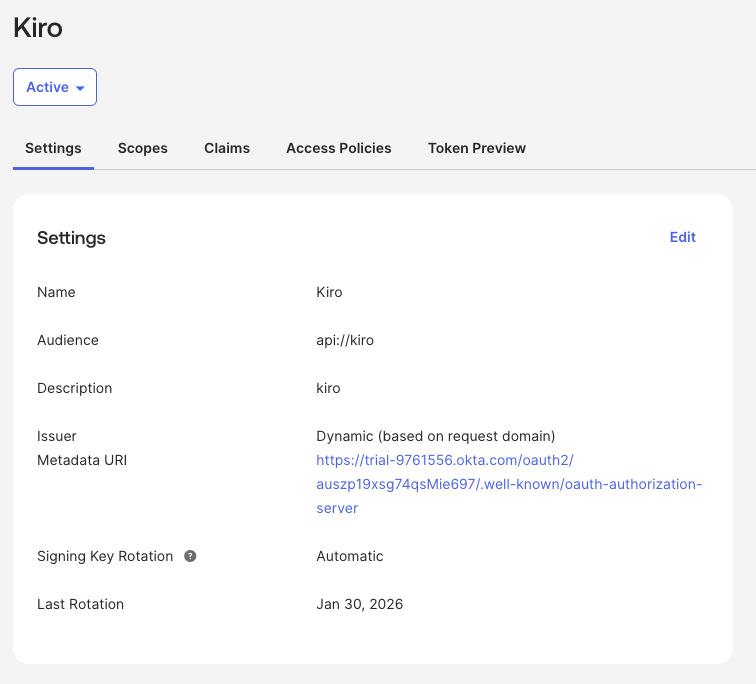
Select the "Scopes" tab and select the "Add Scope" button to add a scope that authorizes user identities to access a Kiro feature.
First, add a scope for codewhisperer:completions with "User content" value set to "Implicit". Leave all other fields as default. Select "Create" to add the scope.
Loading image...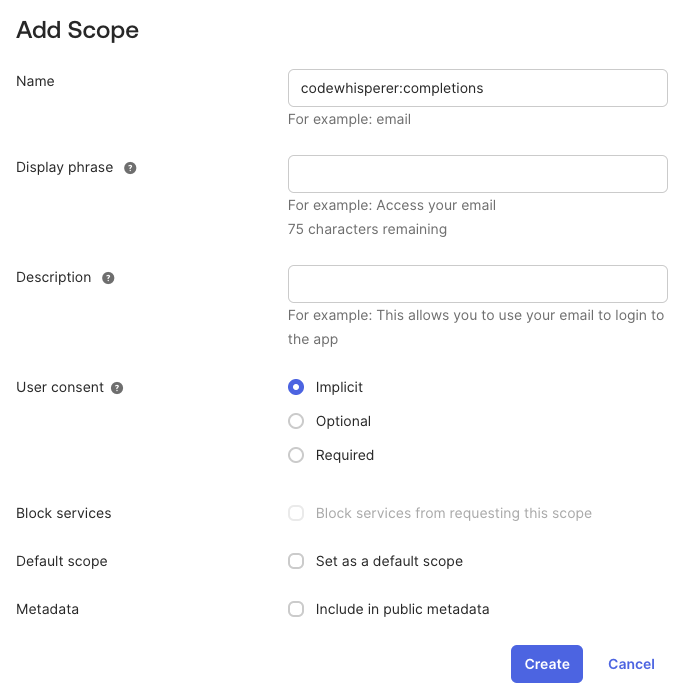
Follow the same steps to add a scope for codewhisperer:conversations.
Next, you have to add access policies and rules to the Authorization Server to control what Kiro can access through the Kiro OIDC application.
Select the "Access Policies" tab and select the "Add Policy" button.
Loading image...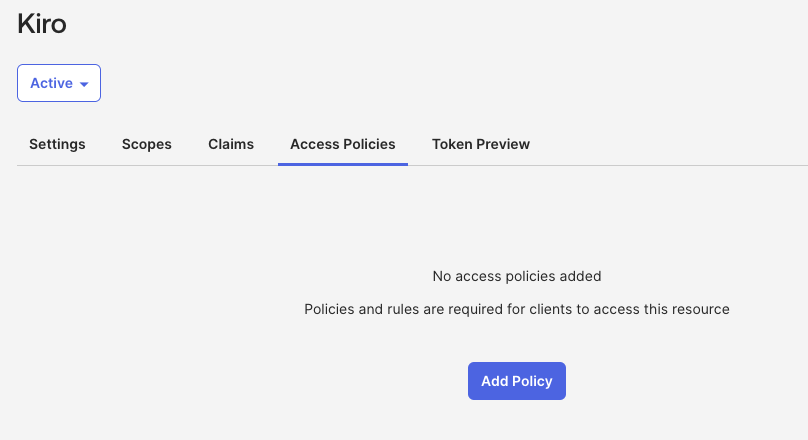
Set a descriptive name for the policy and assign the policy to the Kiro OIDC application you created - Kiro-OIDC.
Loading image...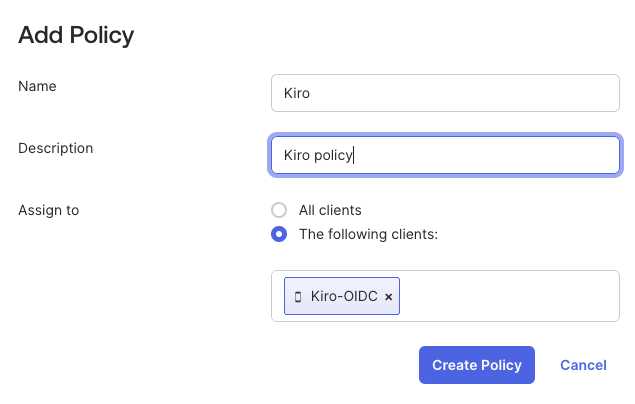
After the policy is created, select "Add rule" for the newly created policy.
Loading image...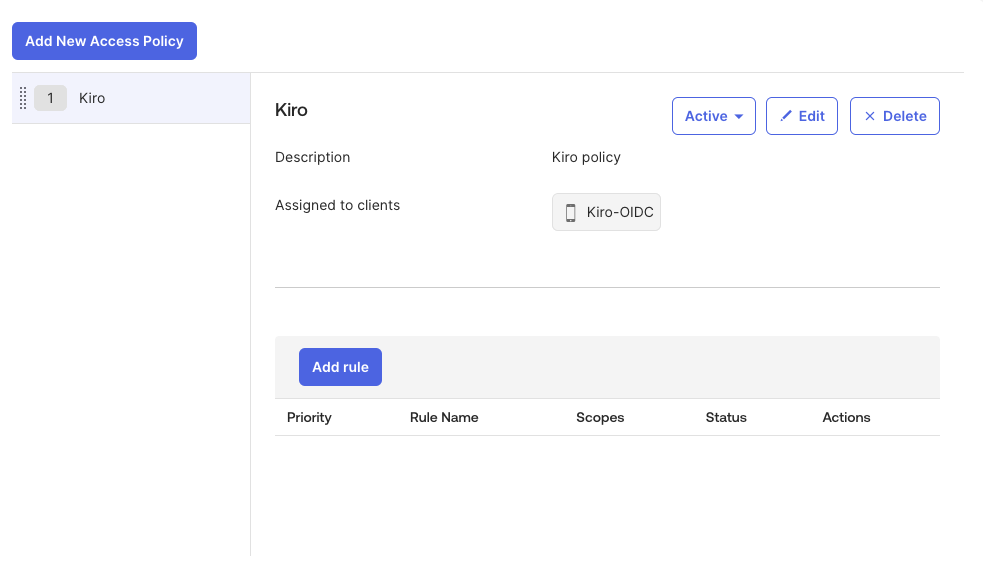
Leave the default values for all the fields except for "Scopes requested". Select "The following scopes:" option and add the "codewhisperer:completions", "codewhisperer:conversations" and "offline_access" scopes. Select "Create rule" to complete adding the rule.
Loading image...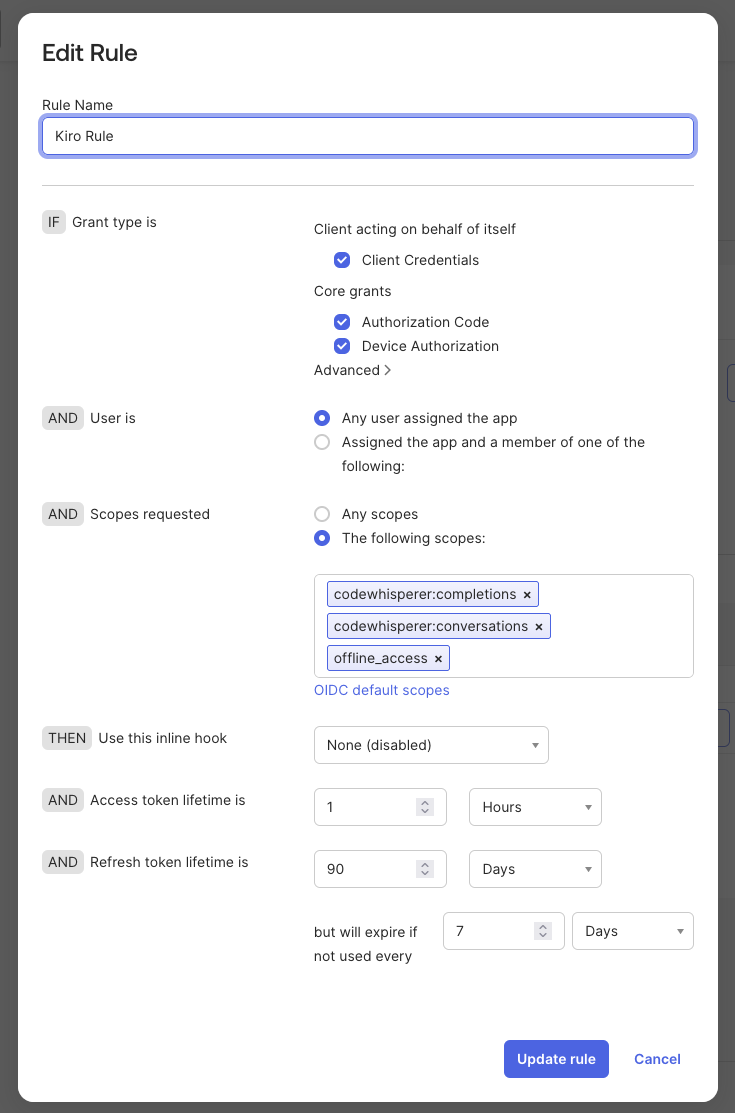
Lastly, test the configuration. To test, select the "Token Preview" tab. Select the OIDC application you created for Kiro (ex: Kiro-OIDC) in the "OAuth/OIDC client" field, select "Authorization Code" as the "Grant type", and select the two codewhisperer scopes, and "offline_access" in the "Scopes" field. Select the "Preview Token" button and if the configuration is valid, the Payload section in the "Preview" panel will contain a "iss" attribute with value, and the "scp" attribute will contain the three scopes you selected.
Loading image...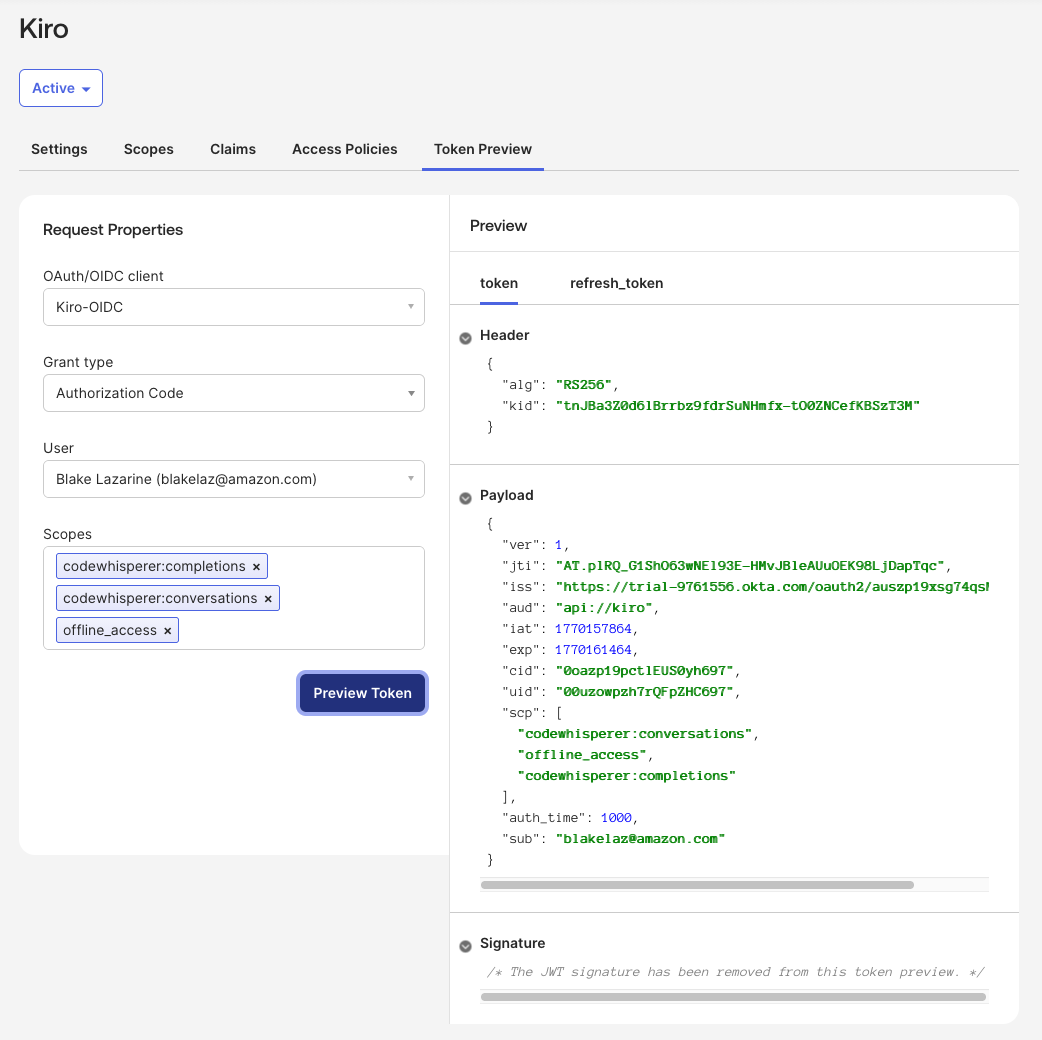
You have completed all the steps required to configure the applications in Okta. Now you can create the Kiro Profile and subscribe your users and groups.
In the Kiro console, select "Sign up for Kiro" and select "Set up application as Admin". Select the "Connect an existing external Identity provider" option.
Loading image...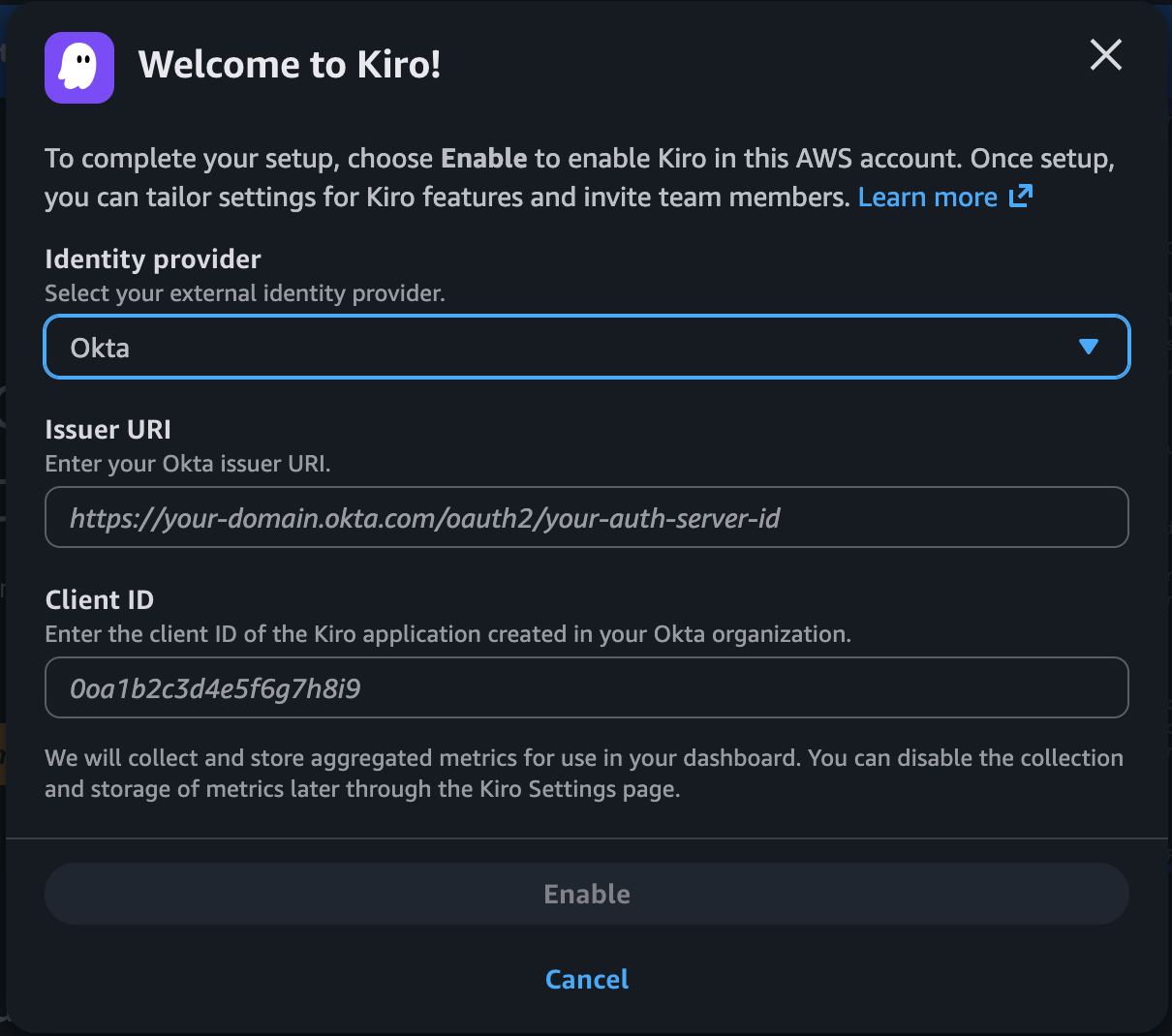
From the Okta Admin Console, navigate to Security -> API section and select the Authorization Server that you created for Kiro.
Loading image...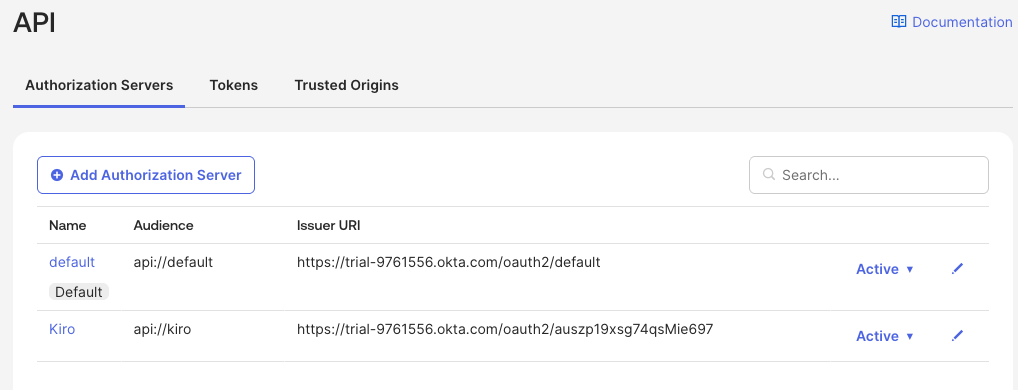
Copy the Issuer URI value for the application you just set up and paste it in the Issuer URI field of the Kiro Profile.
In the Okta Admin Console, navigate to the Applications section, and open the OIDC application that you created for Kiro integration, for example Kiro-OIDC. Copy the Client ID value and paste it in the Client ID field of the Kiro Profile.
Loading image...
Select "Enable" to complete creating the Kiro Profile.
In the Kiro console, select the "Settings" button and in the Identity management -> Domains section, select "Add domain" to add your company domain.
Loading image...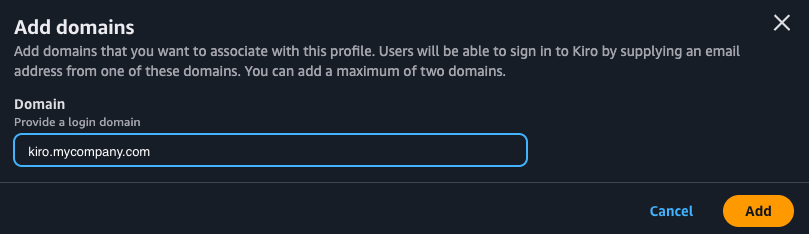
Selecting "Add" will add the domain and show you a verification token. Copy the verification token. The domain added will show up in the Domains list with "Pending" status.
In your DNS Provider like Amazon Route53, create a TXT record with that verification token within 24 hours of adding the domain. You can publish the record at either of two locations:
- The exact domain you added in Kiro (the apex — for example,
yourdomain.com), or - The
_kiro-challengesubdomain of that domain (for example,_kiro-challenge.yourdomain.com). Use this if your organization's DNS policy does not allow a permanent TXT record at the apex domain.
Set the record value to the verification token shown in Kiro (for example, kiro-site-verification=<your-token>). Kiro checks both locations, so you only need to add the record in one of them. Do not use any other subdomain prefix (such as kiro-app-1.) — only the exact domain and the _kiro-challenge prefix are checked, and any other prefix will not verify. If the domain is not verified within 24 hours, it returns to an unregistered state and must be re-added (which issues a new token).
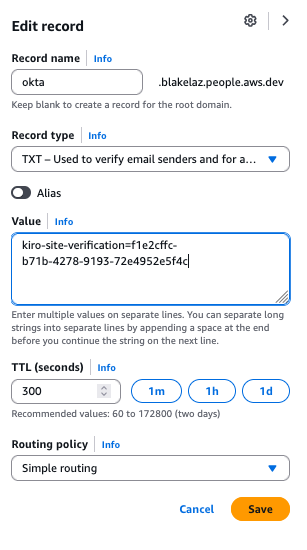
If the configuration is valid, after a few minutes the status will be "Verified".
Loading image...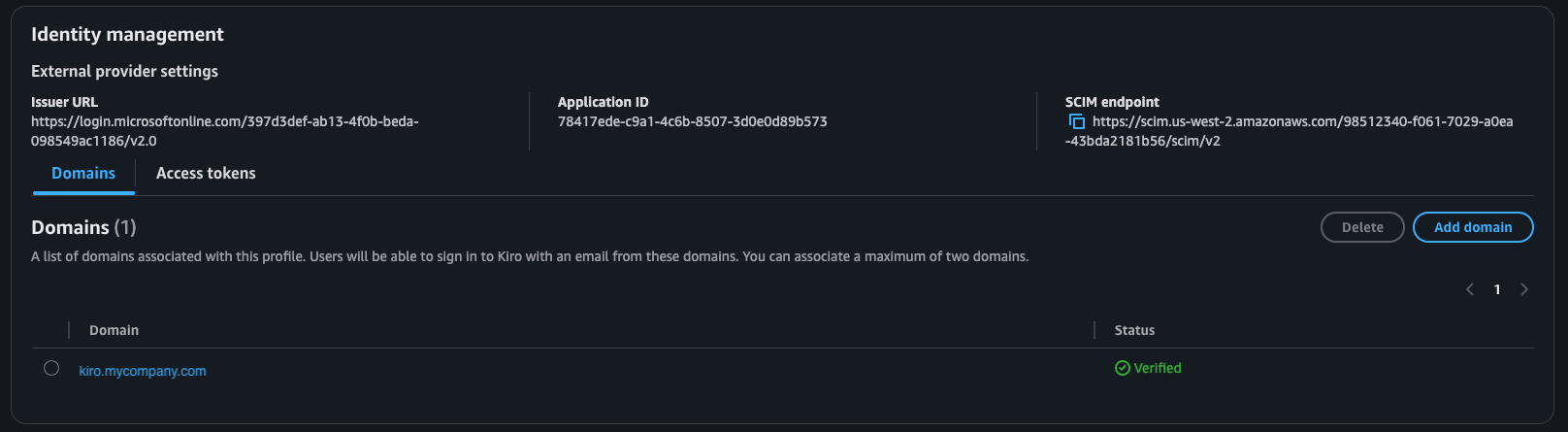
If your organization uses a private or internal domain for its infrastructure, use one of the following approaches:
- Verify a publicly resolvable domain or subdomain that you control. Add the TXT record to a domain (or subdomain) that resolves on public DNS, and verify that domain instead of the private one.
- Register the public domain your users sign in with. If your users sign in with email addresses on a public domain, add that public domain to the Kiro profile. When a user enters their email (with the public domain) and selects login, Kiro redirects them to the Okta login page — regardless of your internal infrastructure domain.
In the Kiro console, navigate to Settings → Identity Management → Access Tokens and select "Generate Token" to create an access token for SCIM provisioning. Copy this token — you will need it when configuring the SCIM provisioning application in Step 4.
Loading image...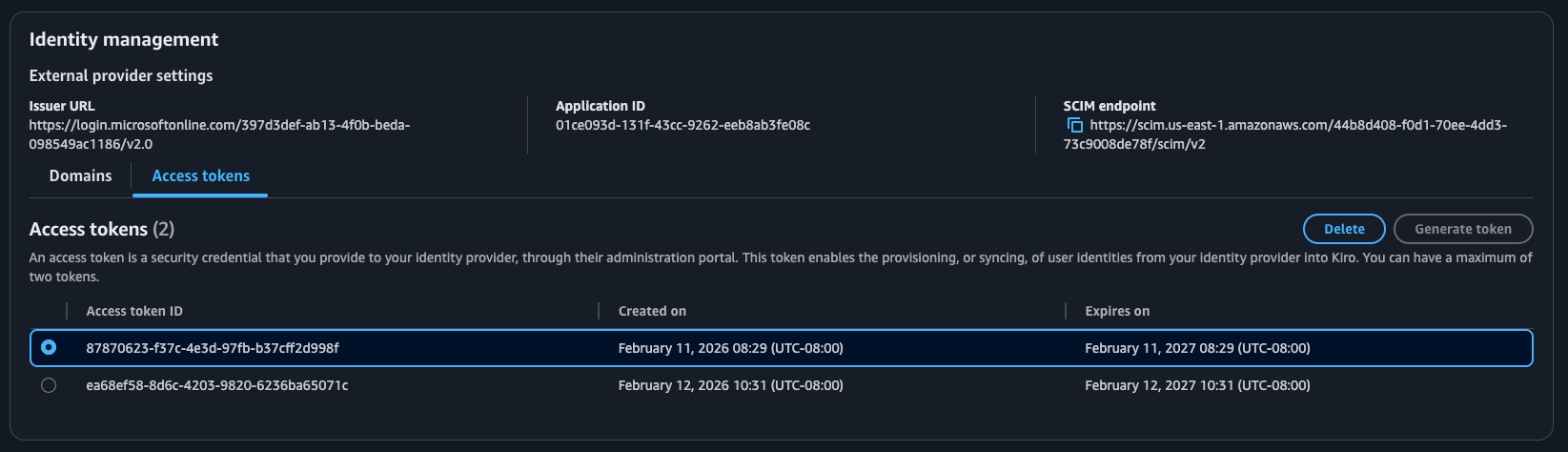
Next, you have to create the SCIM provisioning application and configure users and groups.
In the Okta Admin Console, navigate to the Applications -> Applications section and select "Browse App Catalog". Search for "AWS IAM Identity Center" and select "Add Integration".
Loading image...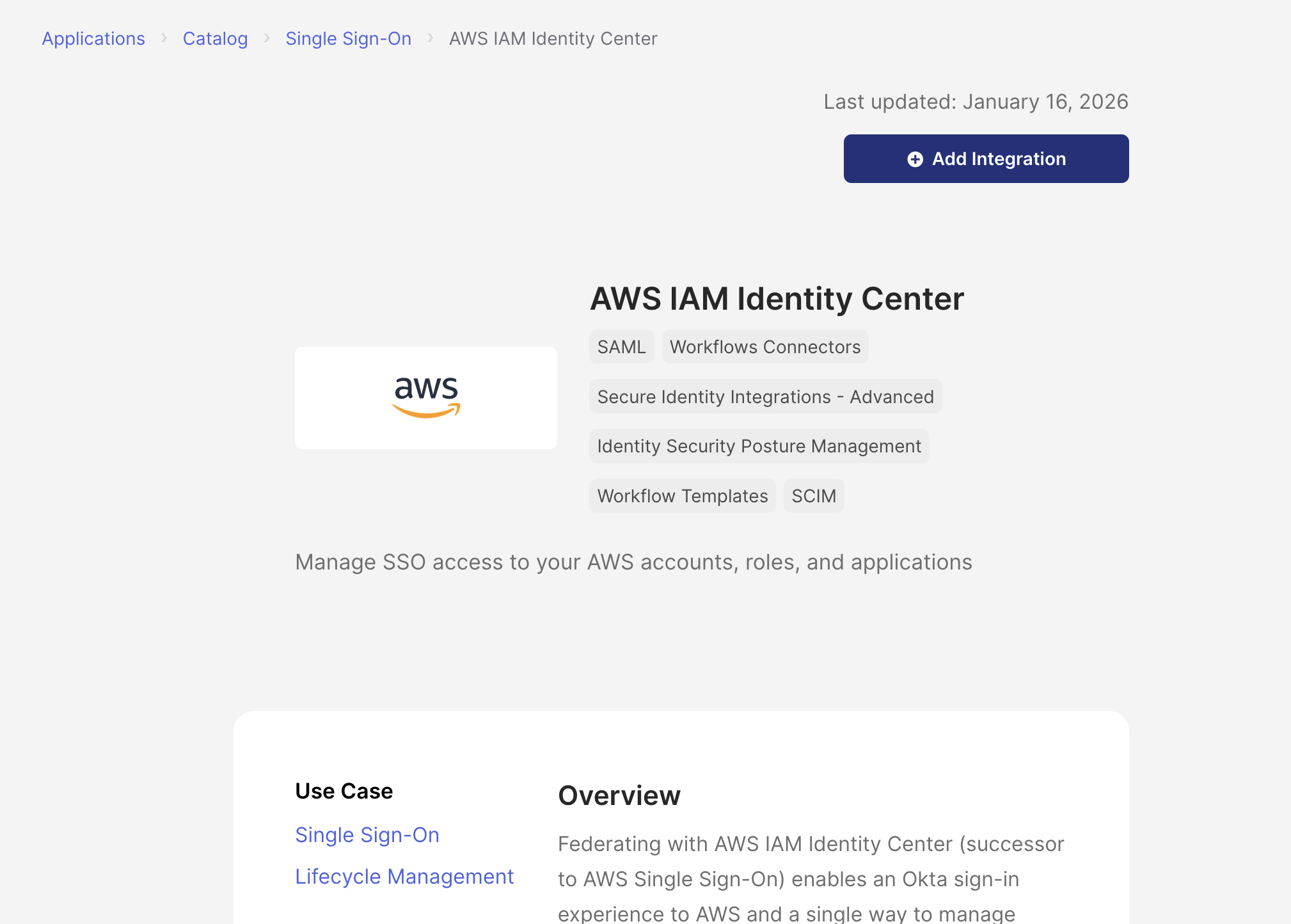
This will add a new application with the "General Settings" tab open having "Application label" value of "AWS IAM Identity Center". You can choose to accept the default or change the label and select "Done".
Now you will see the details of the newly created application. In the "Sign On" tab, the SAML settings (ACS URL, Issuer URL) can be left as defaults — Kiro uses the OIDC app for login, not SAML.
Next, you have to configure provisioning. Select the "Provisioning" tab and then the "Integration" section. You will see a message that provisioning is not enabled. Select the "Configure API integration" button to start the provisioning process.
Check "Enable API integration". This will display additional fields to configure.
Loading image...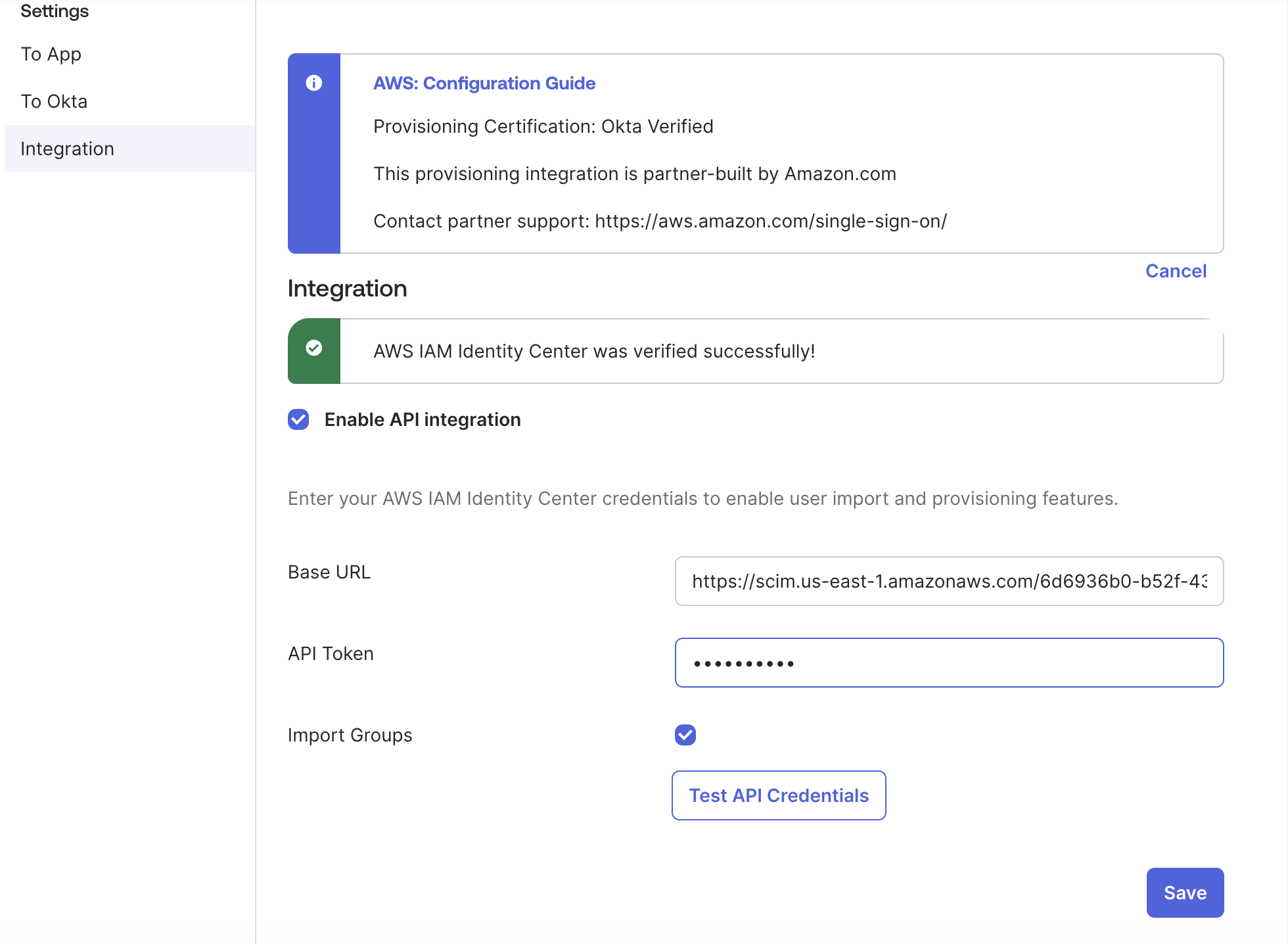
- Set Base URL → paste the SCIM endpoint from Kiro console (Settings → Identity Management → SCIM Endpoint)
- Set API Token → paste the access token from Kiro console (Settings → Identity Management → Access Tokens → Generate Token)
- Select Test API Credentials — should show success
- Select Save
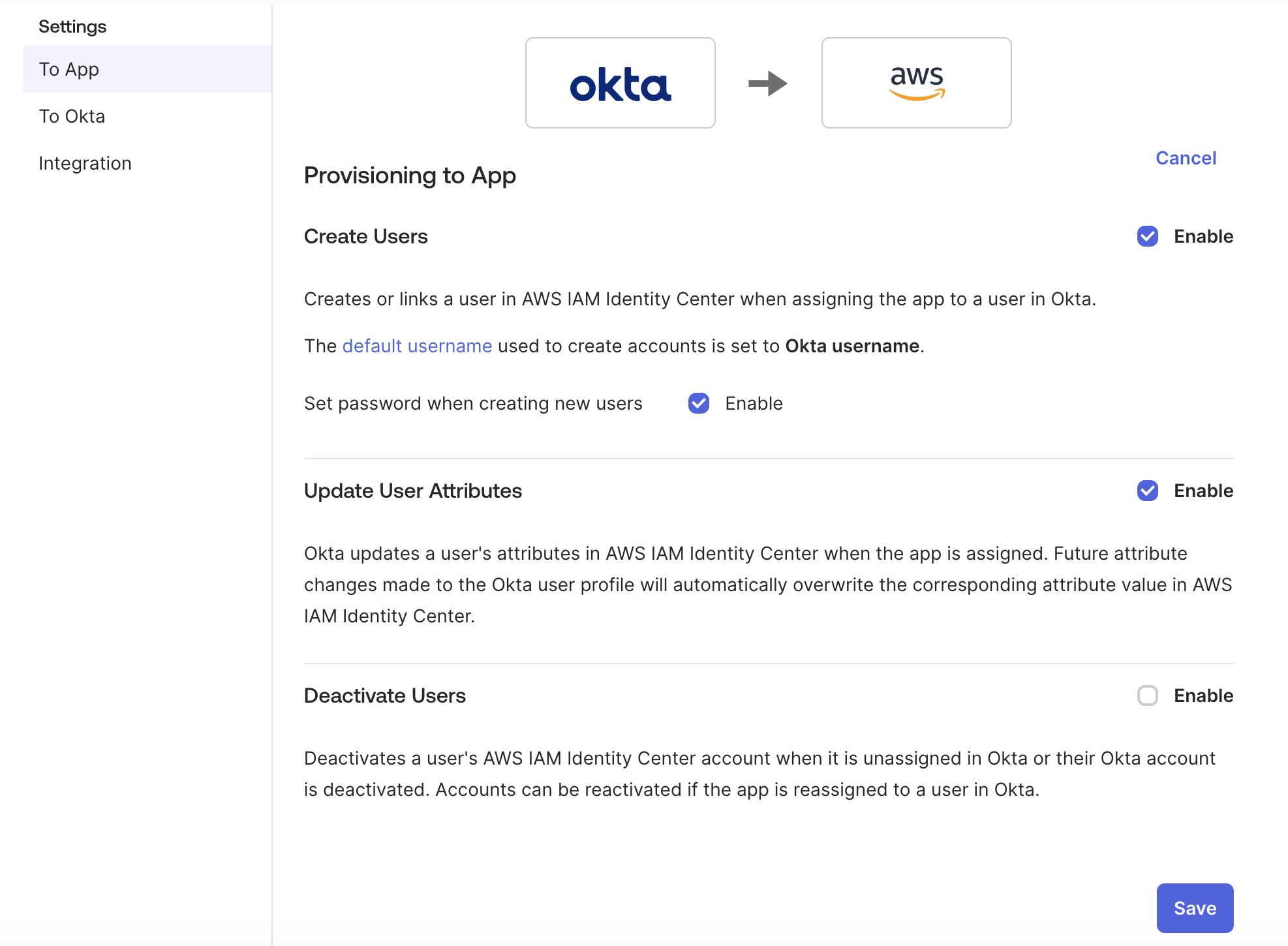
- Under the Provisioning tab → To App → Edit, enable:
- Create Users
- Update User Attributes
- Select Save
If you want to push groups from Okta to Kiro, then follow these instructions.
Pre-requisite
Before adding groups, remove the two attributes - "department" and "employeeNumber". Select the "AWS IAM Identity Center" app that you created, and in the "Provisioning" tab, select "To App". Scroll down to the AWS IAM Identity Center Attribute Mappings section and remove the two attributes.
Loading image...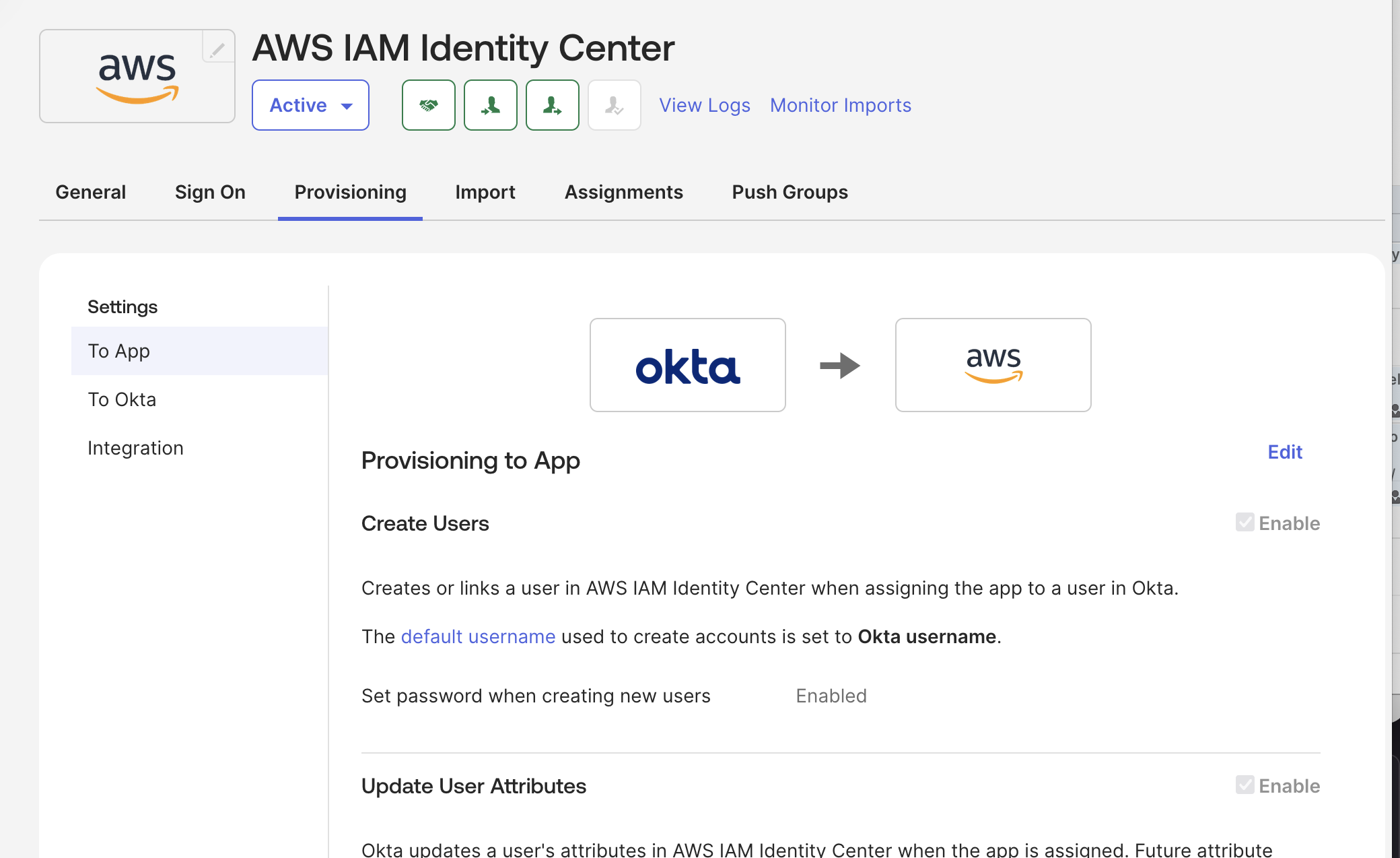 Loading image...
First, assign the groups to be synchronized. Select the "Assignments" tab and select the "Assign" button and choose "Assign to Groups" option. From the list of available groups, select "Assign" on each group you want synchronized and follow the steps.
Loading image...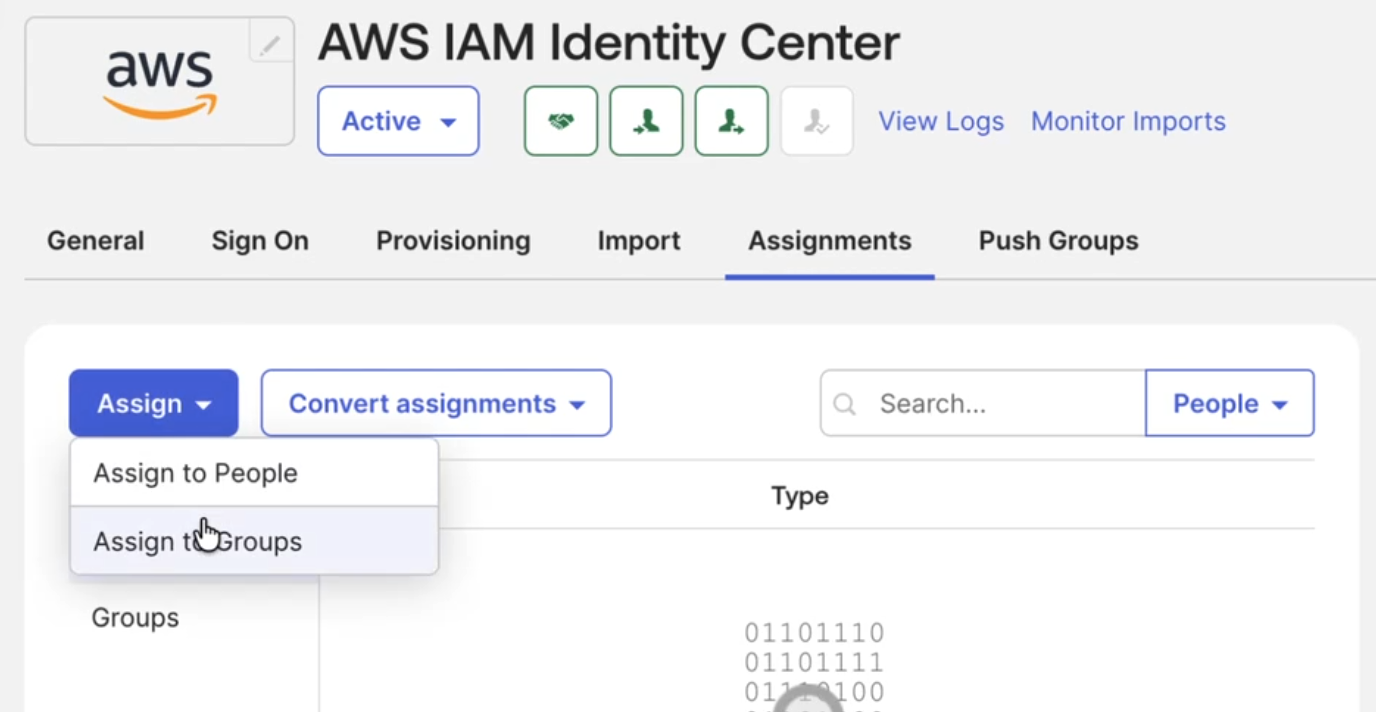 Loading image...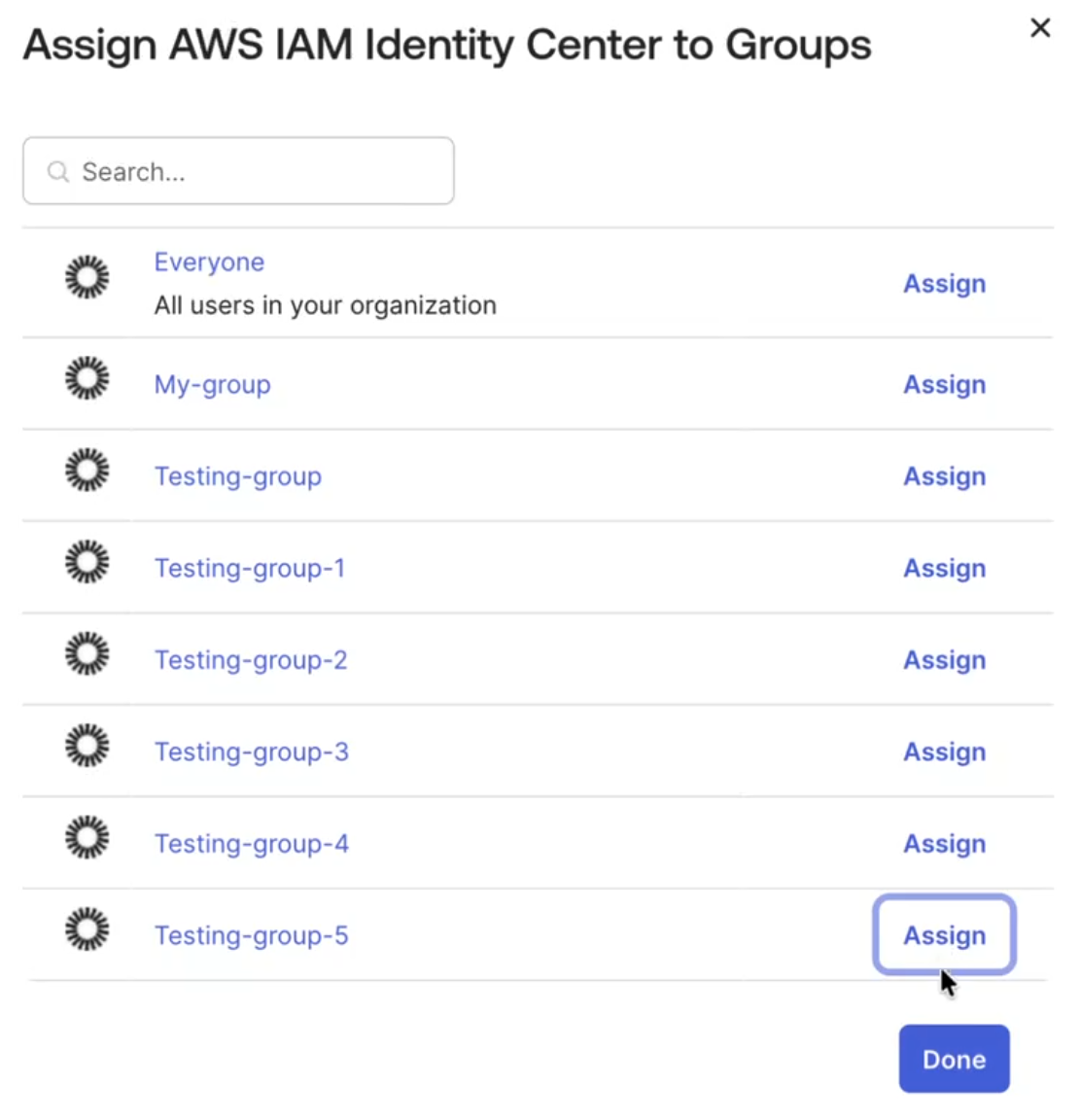
Next, set up the synchronization of groups.
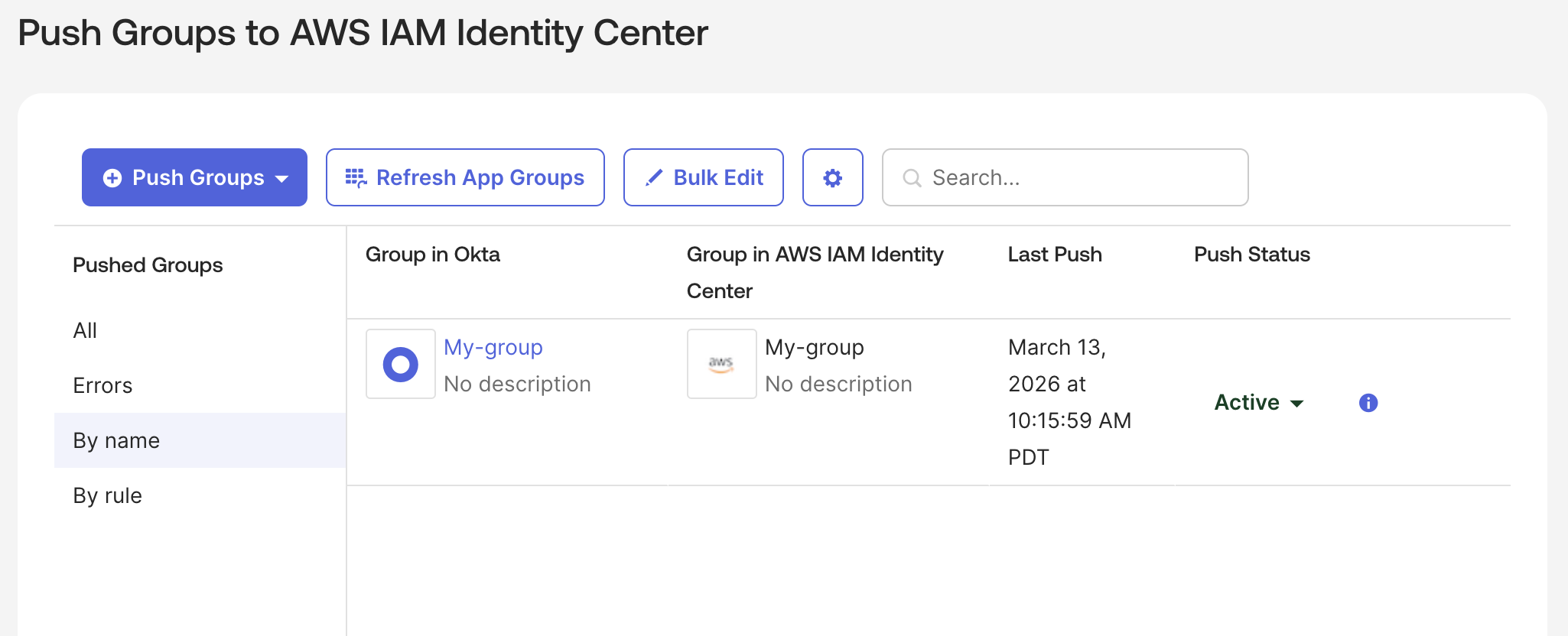
- Select the Push Groups tab. Select the Push Groups button and choose the Find groups by name option.
- Select the group(s) to push, and select Save.
- Group status should show Active, if the configuration is correct.
You have now completed all the steps required to configure an application in Okta, connect the application with a Kiro Profile, and add users/groups to the Profile.
Session management
- Kiro uses OIDC refresh tokens to maintain user sessions. When a session expires, the refresh token keeps the Kiro session alive independently until the refresh token itself expires.
- You cannot force-revoke active user sessions from the Kiro console. To remove access, you have to remove the user from the Okta application — access will be revoked at the next token refresh attempt.
- Removing users from the Kiro OIDC application will prevent users from logging in (Applications → Kiro OIDC application → Assignments) → Select x next to user
Redirect URI security
- Add only the redirect URIs specified in this guide.
Profile deletion warning
If you delete a Kiro profile after provisioning and create a new profile with the same Okta application, group membership will not be synced. You must re-provision the application completely.
Preventing unauthorized access
- Do not add any user to the Kiro application in Okta.
- Verify the user is not a member of any group that is assigned to the Kiro application.
- After creating a group-based subscription, review the Subscriptions tab in the Kiro console to confirm that no unintended users received a subscription.
Removing a user and deprovisioning behavior
- Remove the user's assignment from your Kiro application in Okta. This blocks all future login attempts.
- Existing sessions remain active until the next token refresh is attempted, at which point access is revoked. Active sessions are not immediately terminated.
- Subscription removal is not automatic. After removing a user from the Okta application, you must also manually delete the user's subscription in the Kiro console to release the seat.
Group membership sync behavior
- Kiro relies entirely on push-based SCIM sync from Okta. Kiro cannot request a pull from Okta.
- Group membership changes are pushed to Kiro as they occur.
| Missed step | How will this manifest | How to fix | Notes |
|---|---|---|---|
| User was not added to the OIDC app | User will not be able to log in | Add the user to the OIDC application's Assignments tab | User must be in both OIDC and SCIM provisioning applications |
| Did not enable provisioning to create users | Users are not synced to Kiro | In the SCIM provisioning app, go to Provisioning > To App and enable "Create Users" | Also enable "Update User Attributes" |
| Used a private or internal TLD for domain verification | Domain stays in "Pending" status and never verifies | Verify a publicly resolvable domain or subdomain instead, or register the public email domain your users sign in with | Verification performs a public DNS lookup; private TLDs return NXDOMAIN |
Connect your Okta IdP