By default, your users can use any model supported by Kiro in their client. You have the ability to manage which models your users are allowed to use.
You can manage model access by selecting the list of models that users can access.
To opt into managing the models list:
- Open the Kiro console.
- Choose Settings.
- In the Shared settings section, toggle the Control which models are available to users under the Model availability setting.

To add models to the list of models available in Kiro clients:
- Select the Manage approved list link in the Model availability setting.
- A modal dialog will show the list of models that are available to manage including "Auto"
- Each model will have a name and description.
- Select the models that you want to make available to the clients.
- Set a default model. The default model is automatically applied to all clients in your organization.
- Select Save list to save the model list.
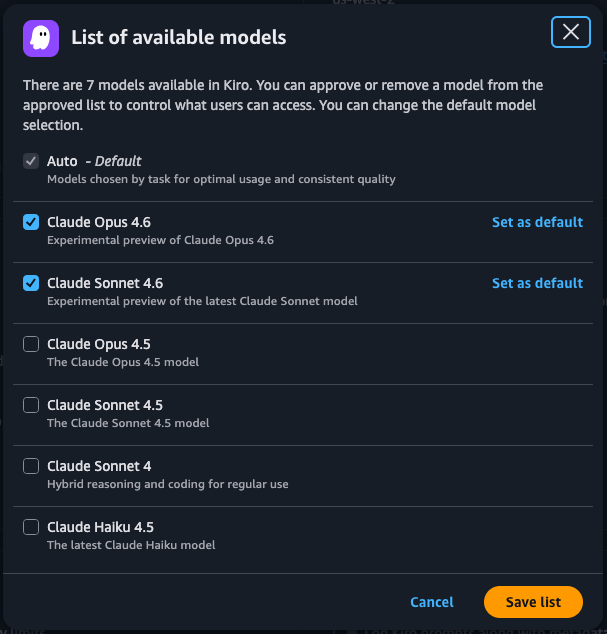
To remove models from the allow list, simply uncheck the models from the allow list of models.
Keep in mind, removing a model that was previously available will not be immediately removed from the client. Clients have to restart their session.
- If you manage the model allow list, any new model offered by Kiro will not become available to clients unless you add them into the allow list.
- You will receive a notification in the console when a new model becomes available.
Page updated: April 13, 2026
Models