Introducing automations in Kiro on the web
Kyle Seaman
Product Lead
Alex Jia
Product Marketing
Some work comes back on a schedule. Dependencies drift further from current every week. Documentation falls behind a little more with every merge. API contracts between services quietly diverge until something breaks in staging. Every time it comes back around, you are opening the same file, reading the same diff, writing the same kind of fix.
Today, we are adding cloud automations in Kiro on the web, so you can have Kiro automate these recurring tasks. Automations are managed by the autonomous agent. Kiro creates an autonomous session for each run in the sandbox, and automatically opens a pull request when done.
Go to Automations in Kiro on the web, give your recurring task a name, and select the repositories you want it to work with from GitHub, GitLab, or both. Simply describe what you want done, then set a schedule.
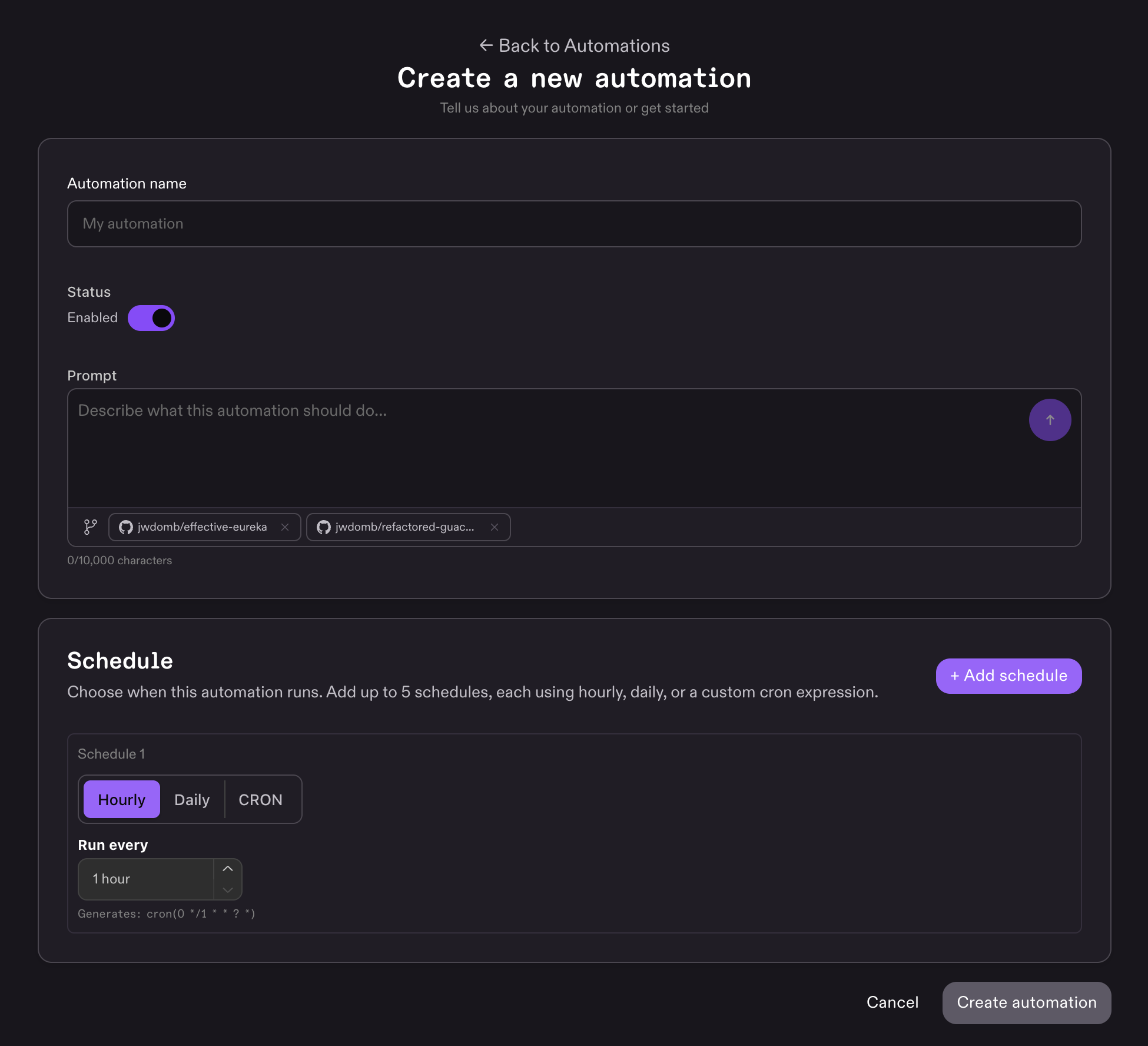
You can add up to five schedules per automation. Pick from built-in options like daily or weekly, or write a cron expression for anything more specific. When a schedule fires, Kiro spins up a cloud sandbox, clones the repositories, runs the work, and opens a pull request with the changes. Each run is an independent session with its own sandbox, isolated from other sessions and from your local environment.
Automations open pull requests, and you review when the work is ready.
You can edit an automation at any time. Change the schedule, update the repositories, rewrite what you want it to do. Changes apply to the next scheduled run. You can also disable an automation without deleting it, and re-enable it when you are ready.
Find gaps between code changed on the main branch and existing documentation. Every morning, Kiro checks what has fallen out of date and opens a PR when something needs updating.
Check which files changed this week without corresponding test coverage. Daily, Kiro looks for uncovered paths and opens a PR with generated tests when it finds them.
Scan for stale TODOs and FIXMEs that have been sitting in the codebase longer than they should. Every Monday, Kiro resolves what it can and opens a PR for you to review.
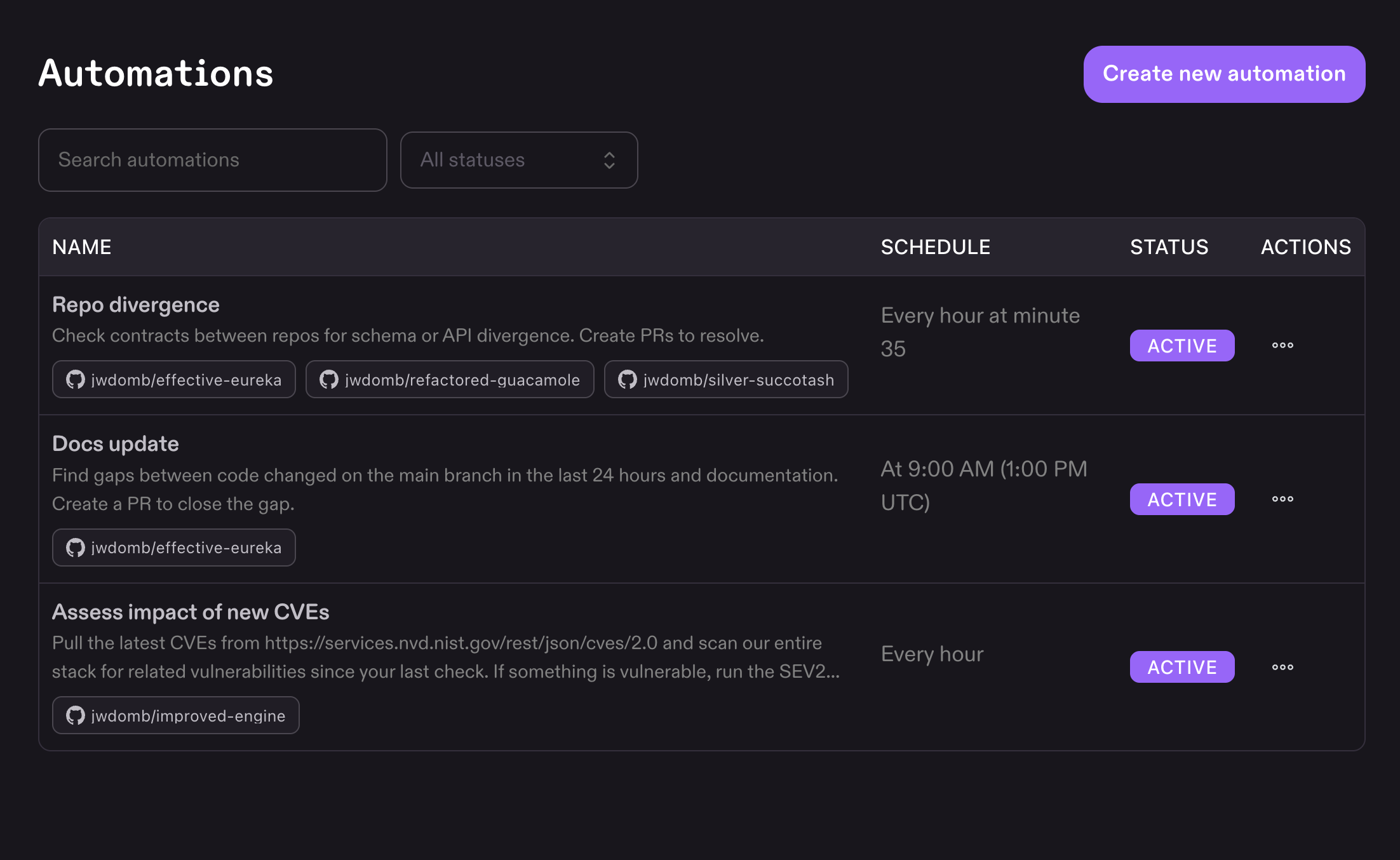
Try it now with something that already recurs: a check you run every Monday, a drift you catch every few days, a dependency sweep you keep putting off. Go to Automations in Kiro on the web, set one up, and let it run. Your first run will fire at the next scheduled time. Tell us how it goes using the Feedback icon in the app or via GitHub.
Automations are available now in Kiro on the web for Pro, Pro+, Pro Max, and Power subscribers. If your organization uses AWS Identity Center, your administrator needs to enable Kiro on the web access before you can create automations.