Remote workspaces bring the IDE to where your code and compute already live
John Traut
Engineering
Mike Landi
Engineering
The workspace no longer has to live directly on your laptop. Starting today, Kiro IDE opens Kiro cloud sessions, runs inside a dev container locally or on a remote host, and connects to machines your team already owns. Wherever the work runs, the full IDE comes with it, so editing files and running terminal commands work the same way they do locally.
Most projects start on a laptop, and for a while that is enough. Then the build gets heavier, the test suite runs long enough to stall everything else, and the local toolchain drifts far enough from everyone else’s that “works on my machine” turns into a debugging step.
Teams handle this in different ways. Some standardize on a devcontainer.json so every developer starts from the same environment. Others already run build machines and specialized hardware that nobody wants to duplicate. Either way, the work has a natural home, and it is often not the laptop.
Until now, moving the work meant giving something up. Kiro offered the full IDE on your machine or an agent running somewhere else, but not both at once. Remote workspaces remove that tradeoff: the workspace can move to Kiro’s compute, into a container, or onto a machine your team already owns, and the IDE comes along unchanged.
Each option comes down to two questions: where the workspace runs and who provides the compute.
| Cloud session | Dev container | Your own compute | |
|---|---|---|---|
| Where the workspace runs | Kiro-managed cloud compute | A container on your machine or on a remote host | A machine you already run |
| Who provides the compute | Kiro | You, with Docker or Podman | You |
| Defined by | Kiro’s default environment | The devcontainer.json in your repository | Whatever is on the machine |
| Good fit | Heavy builds, a clean toolchain, work that should not tie up your laptop | Teams that need a reproducible environment | Existing Linux build boxes, GPU machines, tight network placement |
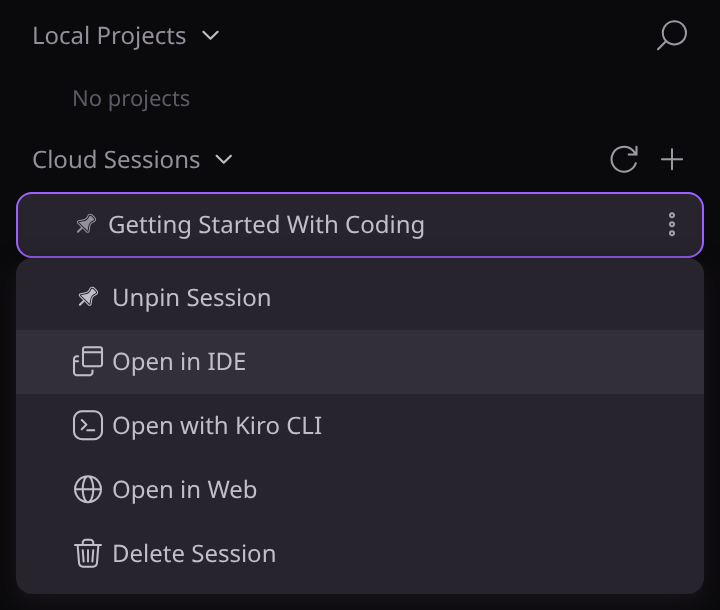
You could already start Kiro cloud sessions from the IDE, and now you can connect the full IDE to one. The IDE connects to the session over SSH, so the file tree, editor, and integrated terminal all operate on the cloud session’s filesystem and shell. You work on the project on Kiro’s compute with the editor you already use, instead of a browser tab. Open the Sessions sidebar or Agent Focus Mode, right-click a session, and choose Open in IDE. Kiro opens a separate remote window connected to that session. Sessions you started in Kiro Web appear in the same list, and closing the window or leaving it idle doesn’t stop the work, because the agent keeps running in the cloud.
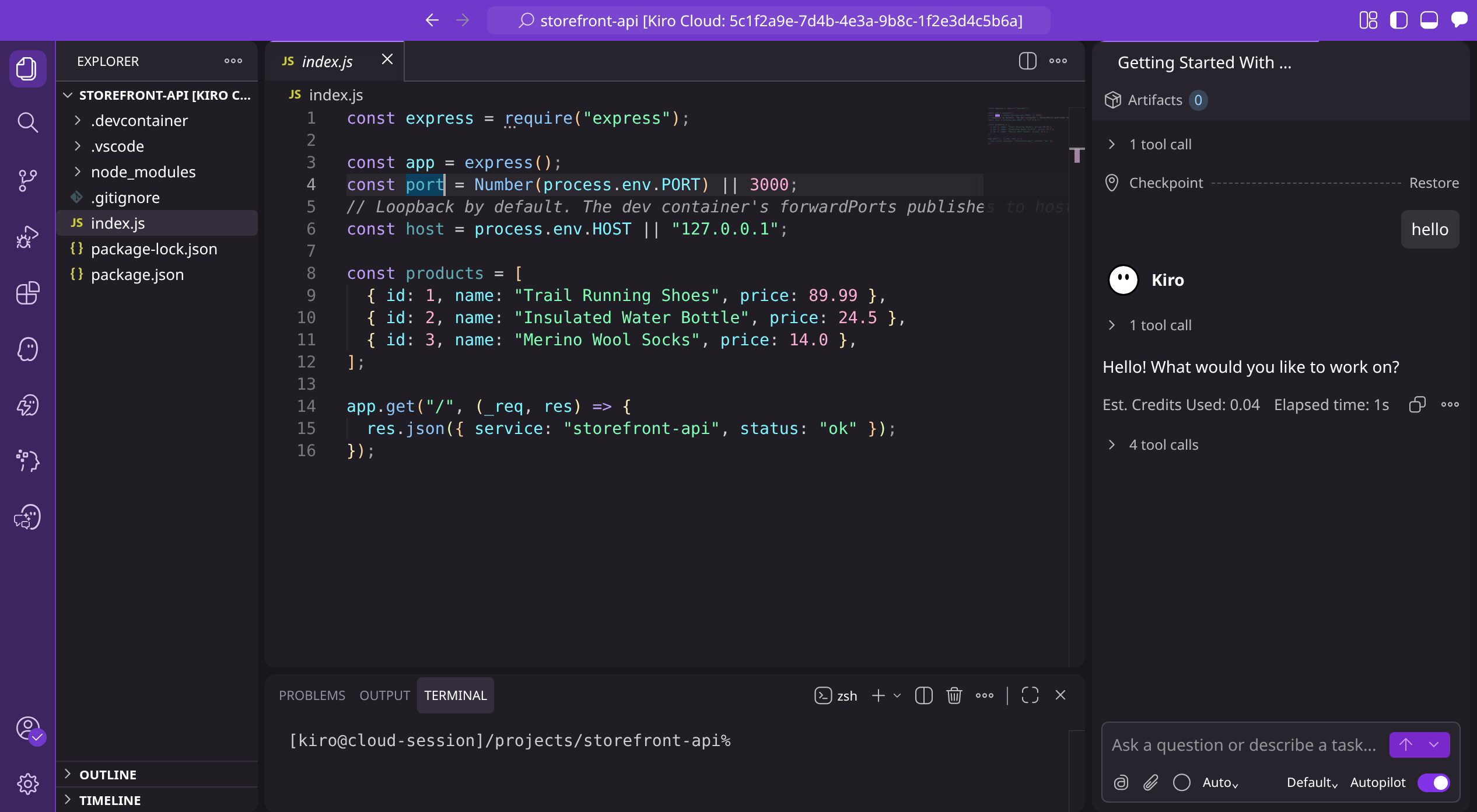
Cloud sessions opened from the IDE can also run inside your organization’s own network. Admins on Enterprise plans can connect cloud sessions to a VPC, so a session reaches private registries, internal services, and databases while your existing network controls stay in place. See Kiro cloud sessions now reach private networks for how to set it up.
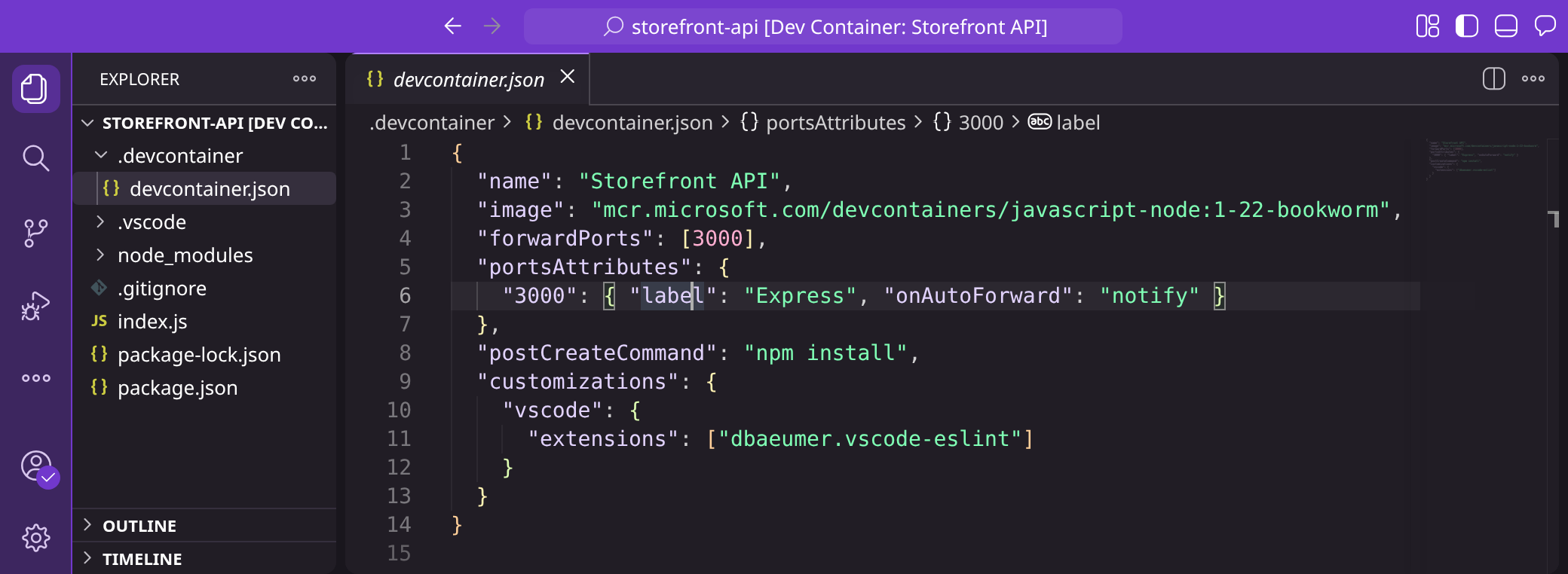
If your repository has a .devcontainer/devcontainer.json, Kiro IDE can now build or attach to that container and run your session inside it.
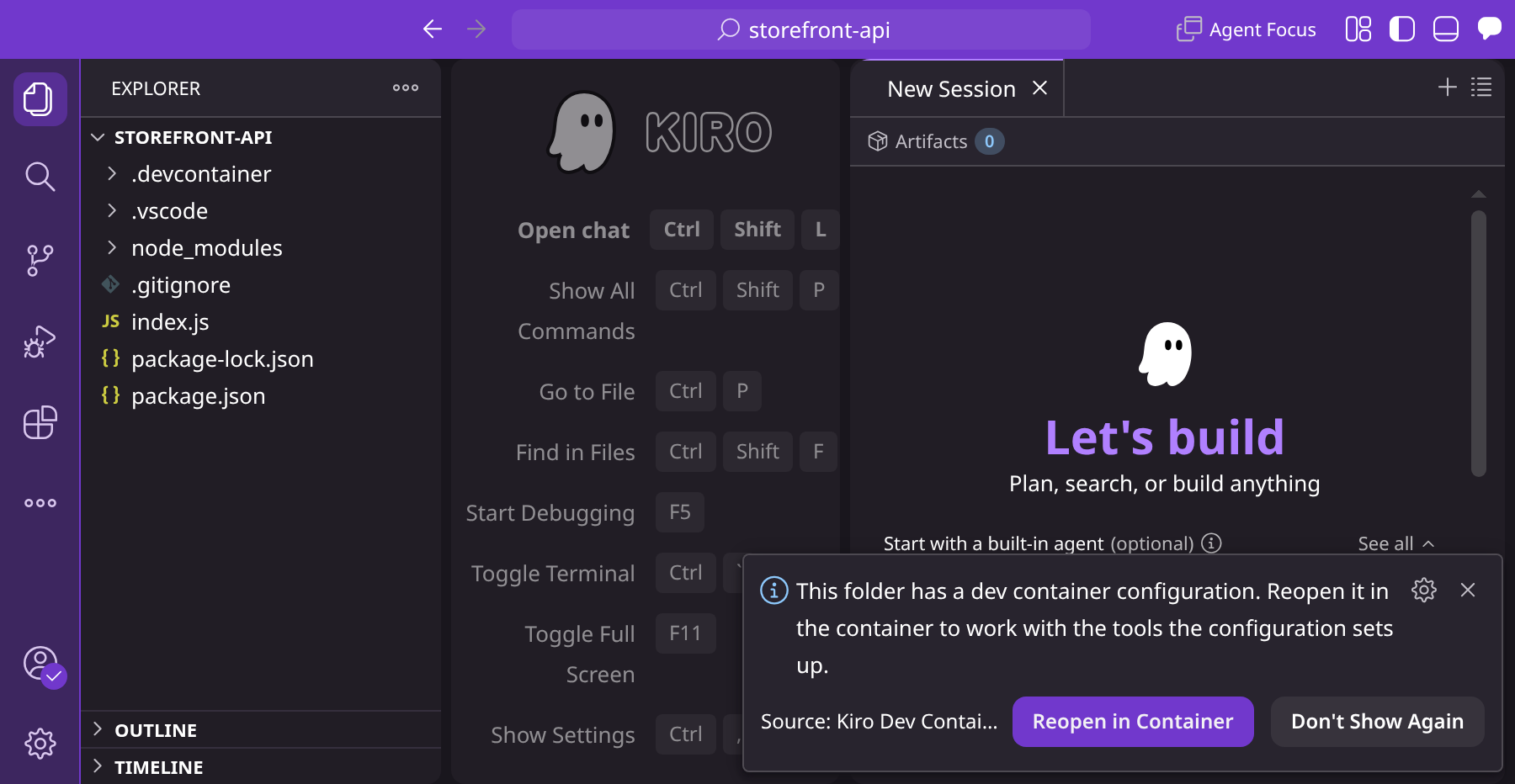
This works on your own machine with Docker or Podman, and it works on remote compute by connecting over SSH first and attaching the container on top, the same two-step flow you may know from other editors. The container definition stays in your repository and stays yours, so the environment your teammates and your CI use is the one Kiro runs in.
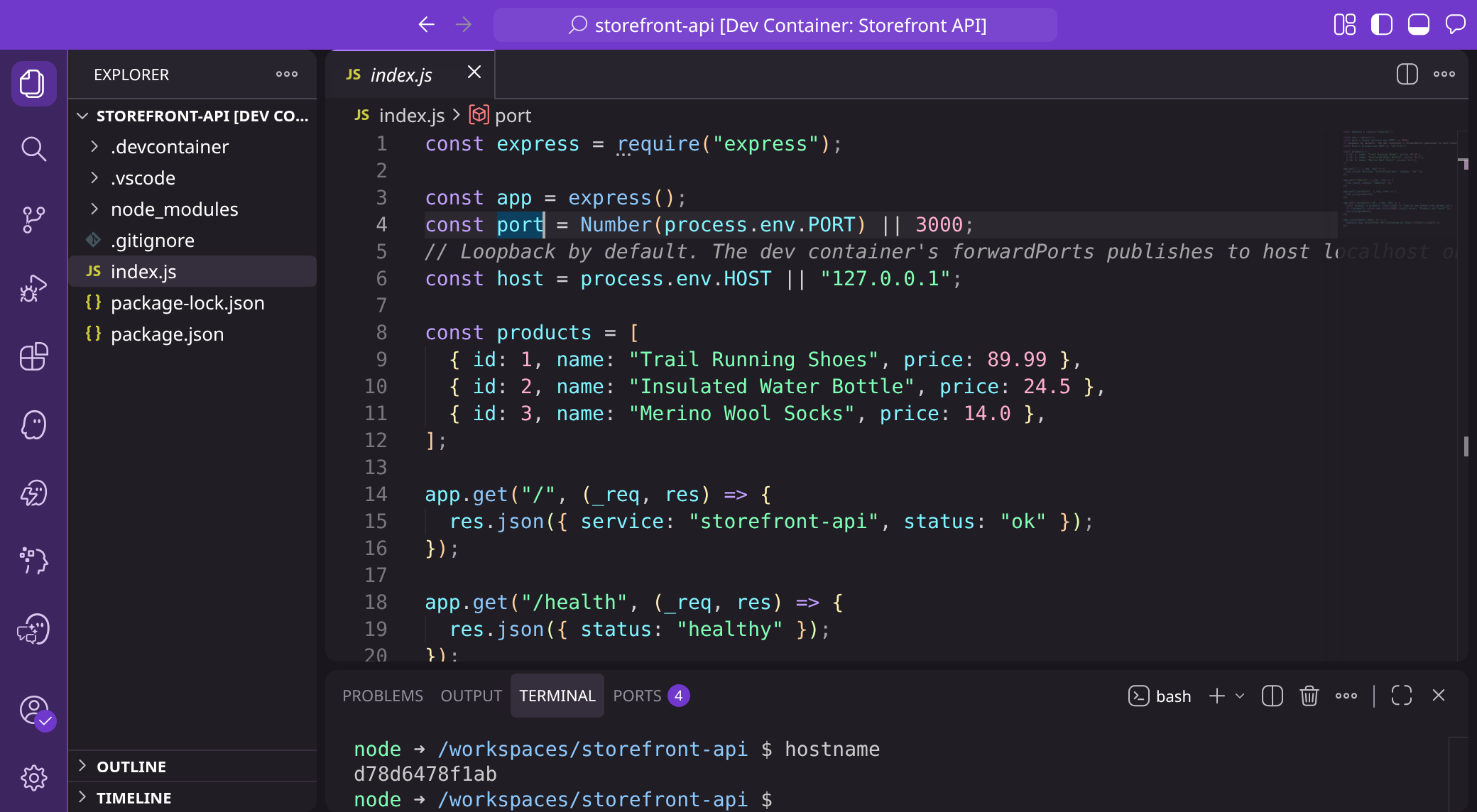
Kiro CLI already runs inside a dev container, because it has no IDE workspace to re-point. What it can’t do yet is open remote workspaces, which is the gap this release closes for the IDE.
A minimal definition looks like this:
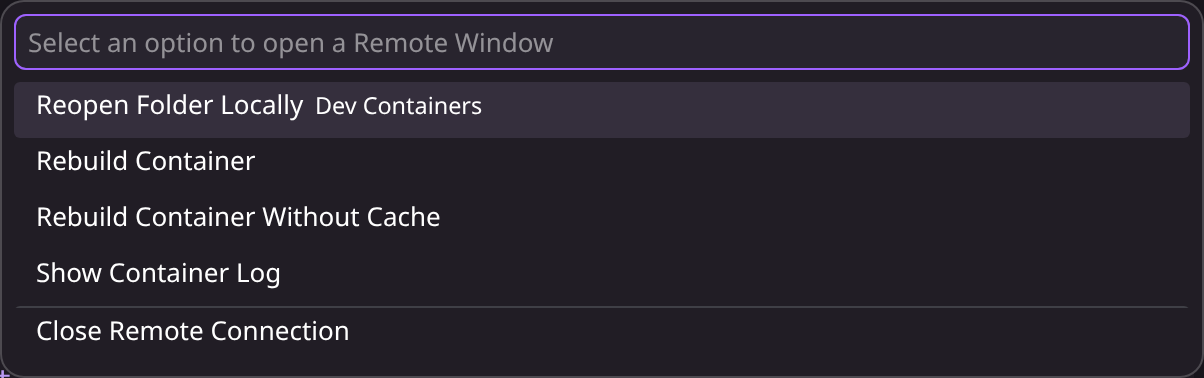
When you change the definition, choose Rebuild Container from the remote menu, or Reopen Folder Locally to step back out of it.
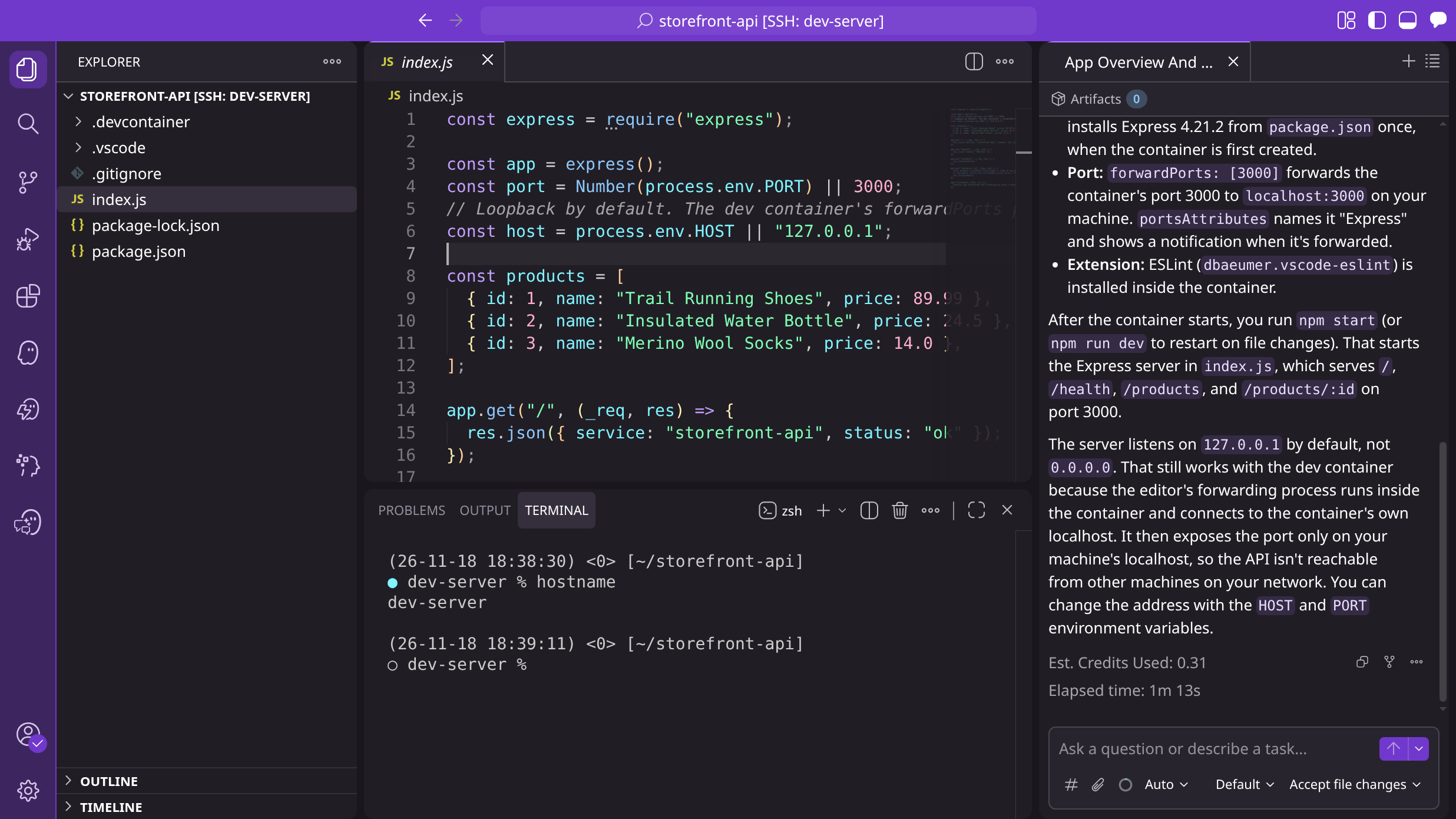
You could already reach your own machines from Kiro IDE through third-party remote SSH extensions. Now Kiro IDE connects natively, with nothing extra to install, so you can run your session on a VM, a build box, or an internal development platform you already run.

The IDE connects over SSH and gives you the same editor and terminal experience as it does for a Kiro cloud session.
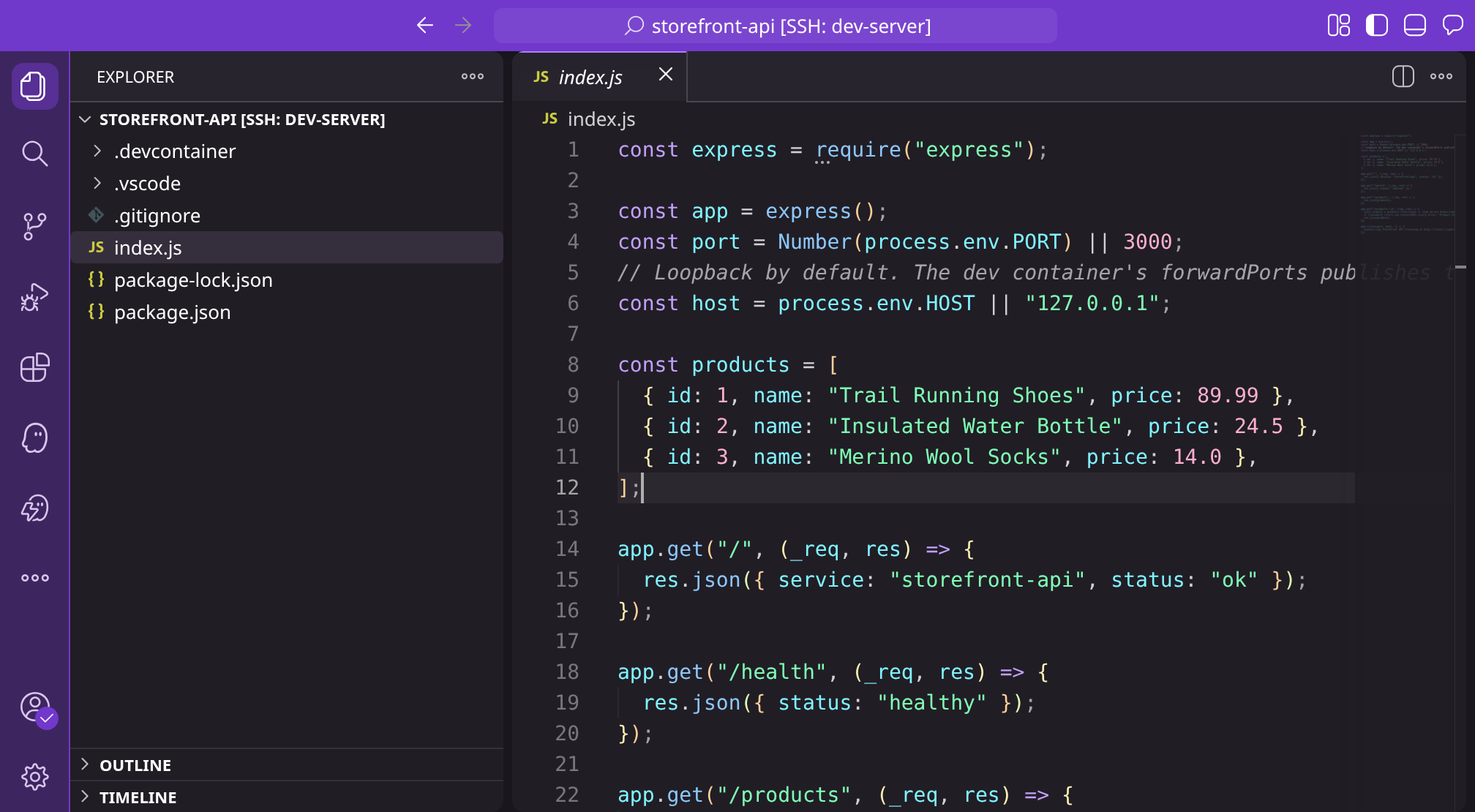
Kiro provides no compute in this case and does not bill for it, so the machine, its network position, and its security posture remain under your control. That makes it a good fit for hardware that a managed cloud will not offer, such as GPU machines and specialized Linux build boxes, and for hosts that already sit inside your network. Agent and model usage still draws Kiro credits as usual.
For a cloud session, run Kiro: New Cloud Session from the command palette or pick an existing session, then right-click it and choose Open in IDE.
For a dev container, open a project that contains a .devcontainer/devcontainer.json. Kiro IDE detects it and offers Reopen in Container, or you can run Dev Containers: Reopen in Container from the command palette. You need a running Docker-compatible engine, and Podman works as an alternative. For a remote dev container, connect to the remote host first and then reopen in the container, and Docker runs on the SSH host instead of your computer.
For your own compute, run Kiro: Add New SSH Host… to save a host, or use your existing SSH configuration. Then run Kiro: Connect to Host… from the command palette, pick the host, and open a folder on it. Your hosts also appear under Remote environments > SSH Hosts in the Kiro view, and the window title shows which host you are connected to. The host needs Linux on x86-64 or ARM64 with glibc 2.28 or newer, and at least 4 GiB free in your home directory. Kiro installs everything else it needs.

All three features are in the latest stable Kiro release, with nothing to enable or install.
Where does the agent run?
It runs where the workspace runs: in the cloud environment for a cloud session, on the host for your own compute, and inside the container for a dev container. Your project files and commands stay in that environment, and your computer receives the file contents, chat, terminal output, and forwarded ports it needs to show the workspace. As with any Kiro session, prompts and relevant code context go to Kiro’s AI services.
How is this different from local sandboxing?
Local sandboxing keeps your work on your machine and restricts what the agent’s commands can touch. Remote workspaces move the workspace itself onto other compute. They solve different problems and can be used independently. See Local sandboxing in Kiro.
Can I reach resources inside my private network?
Yes, for cloud sessions your admin can connect the session to your VPC. See Kiro cloud sessions now reach private networks. With your own compute, the machine’s own network position applies.
Update to the latest stable version of Kiro to open a cloud session, dev container, or your own compute from the IDE — the features are on by default, with nothing to enable or install. See the remote development documentation to get started.