New sessions now get a descriptive, agent-generated title based on what you're working on, replacing the generic default. The title appears in the session header and sidebar as soon as it's ready. Rename a session yourself and that name sticks. The agent never overwrites a title you've set.
Web
Web
Keep a growing session list manageable by grouping related sessions. Create a group in the sidebar or on the sessions page, move sessions in and out, and rename or dissolve a group at any time.
Web
The repository selector now shows a Recent section at the top once you've used a couple of repositories, so getting back to one you were just working in takes a click instead of scrolling the full list. Recent repositories are grouped per provider and drop out of view while you search.
Web
Your team can now access Kiro Web through the Okta or Microsoft Entra ID integration you already use. After an administrator configures access, users only need to sign in. This capability is available with Kiro Pro and above subscriptions.
Add https://app.kiro.dev/signin/oauth to your existing Kiro OpenID Connect (OIDC) application. In Okta, add another Sign-in redirect URI. In Microsoft Entra ID, add the URI under Single-page application, separate from the Mobile and desktop application redirects. Then enable Cloud Sessions (Preview). You can enable Cloud Sessions and API key generation independently.
Learn more: Okta -> | Microsoft Entra ID ->
Web
You can now bring your personal .kiro configuration into Kiro Web. From Settings > Configuration Sync, upload local Steering, custom agents, Hooks, Skills, Powers, or MCP settings for use in every cloud session. Learn more ->
Select or drag one supported top-level folder, such as skills/ or agents/, from your local .kiro directory. Kiro checks each file against its cloud copy before uploading. New files are selected by default, while updates that replace cloud content require your input. Steering files and MCP servers include a side-by-side comparison.
Uploaded items appear on their matching settings pages, where you can view, edit, download, or delete each one. Steering, Skills, Agents, Hooks, and Powers each have their own page under Settings, and uploaded MCP servers appear with your MCP server settings. Catalog Powers are installed by name, and custom Powers upload as text files.
Web
Your agent doesn't stop at writing code anymore. With Playwright and the agent-browser CLI available in its sandbox, it can open the app it just built in a real browser, click through the flows, reproduce browser-based bugs, and verify UI changes before you ever look. Ask for a fix and get one that's already been checked in a browser. Learn more ->
Web
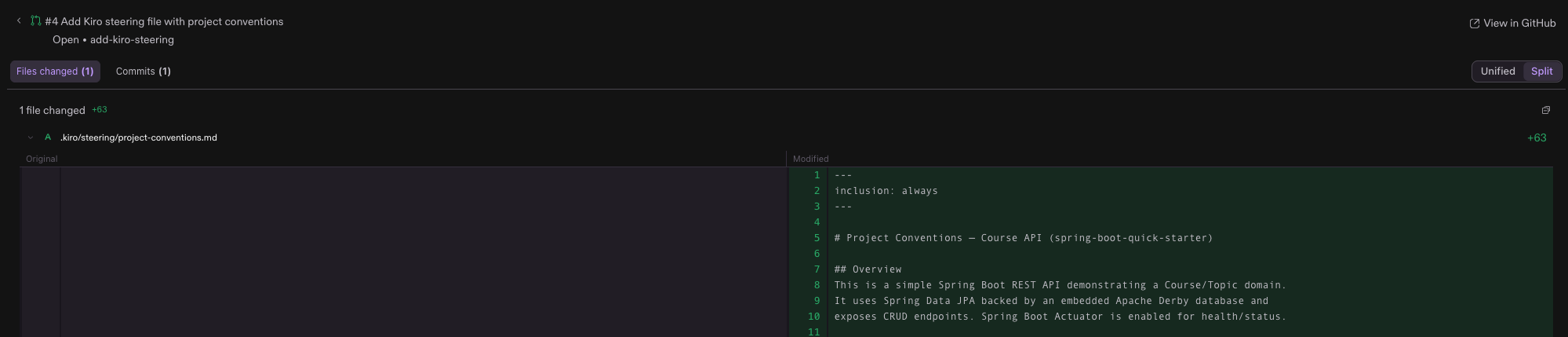
The moment your agent opens a pull request, it surfaces right in your session. The Reviews panel appears on its own and lists every pull request from the session; select a GitHub pull request to walk its status, commits, and changed files with unified or split diffs, all without losing your conversation. When you're ready to review or merge, one click opens it in GitHub. Learn more ->
Web
You can now connect GitLab using fine-grained access tokens. Fine-grained tokens use granular permissions instead of scopes, limiting the token to specific resources and repositories. Learn more ->
Web
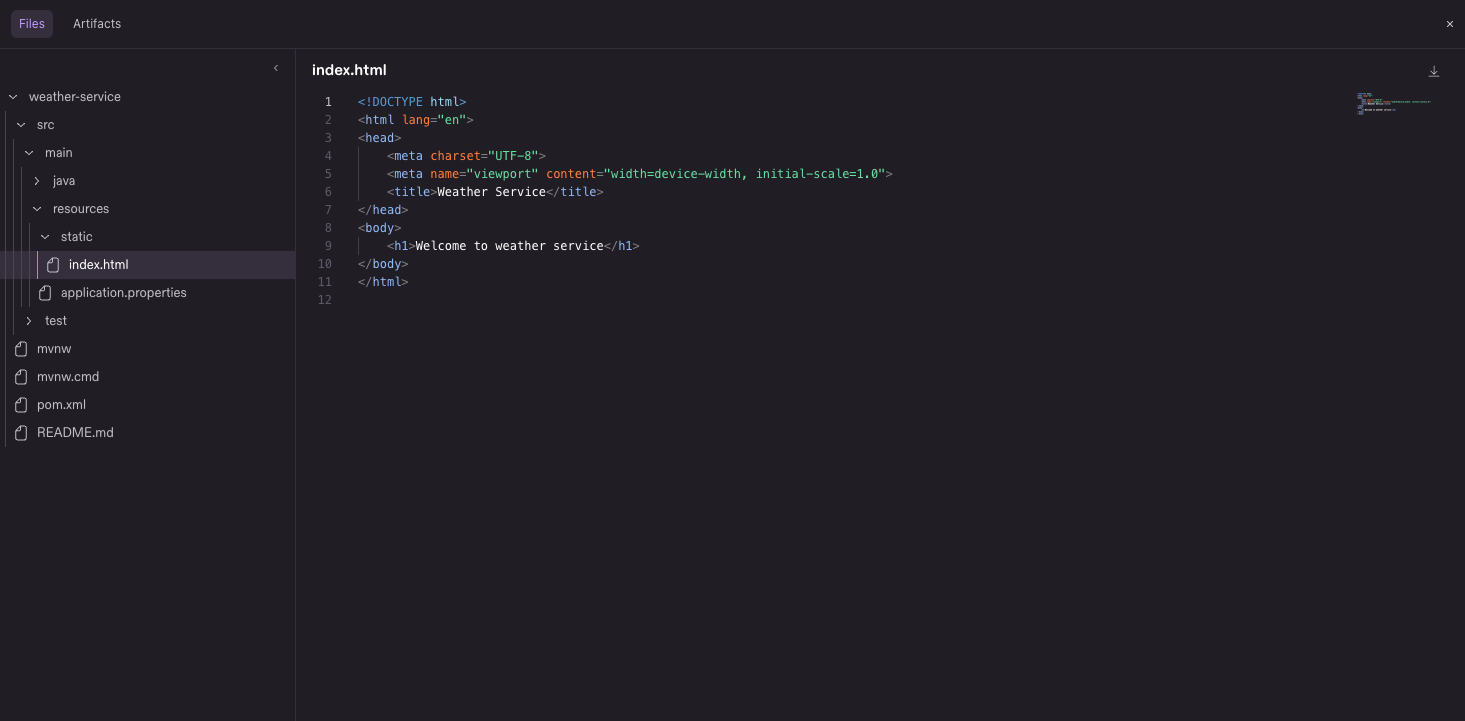
Your agent just built something in its cloud sandbox. Now you can look around. Browse the session's workspace right in Kiro Web, open any file the agent creates or edits in a syntax-highlighted viewer, preview markdown and images, and download what you need. File paths in agent responses are links, so you can jump from "I updated the forecast page" to the actual file in one click. Learn more ->
Web
This release gives the sandbox direct access to your AWS resources and streamlines connecting Powers to services like Figma, Stripe, and Supabase.
Configure an IAM role that Kiro Web assumes on your behalf when running tasks. The sandbox receives short-lived credentials that the agent, CLI tools, and MCP servers can all use to interact with your AWS resources. Credentials refresh automatically while the task runs and are removed when it completes. Set up the role in Settings > Agent > Sandbox > AWS Credentials. Learn more ->
Powers that connect to third-party services now use a standard authorization flow. Authorize once from Manage Powers in your Agent settings, and the agent uses the connection for all future tasks without prompting again. Disconnect at any time to immediately revoke access. Tokens are encrypted at rest and never exposed to the sandbox or the agent. Learn more ->