- Sign in to the AWS Management Console.
- Switch to the Kiro console. If you don't see it, you might be in the wrong AWS Region.
- In the Users & Groups page, choose the Users or Groups tab.
- Choose the user or group whose subscriptions you want to upgrade or downgrade.
- Choose Change plan then choose the new plan. Select Continue to finish.
- If it is a higher tier plan, changes will happen immediately. If it is a lower tier plan, changes happen at the beginning of the following month.
- Sign in to the AWS Management Console.
- Switch to the Kiro console. If you don't see it, you might be in the wrong AWS Region.
- In the Users & Groups page, choose the Users or Groups tab.
- Choose the user or group whose subscriptions you want to cancel.
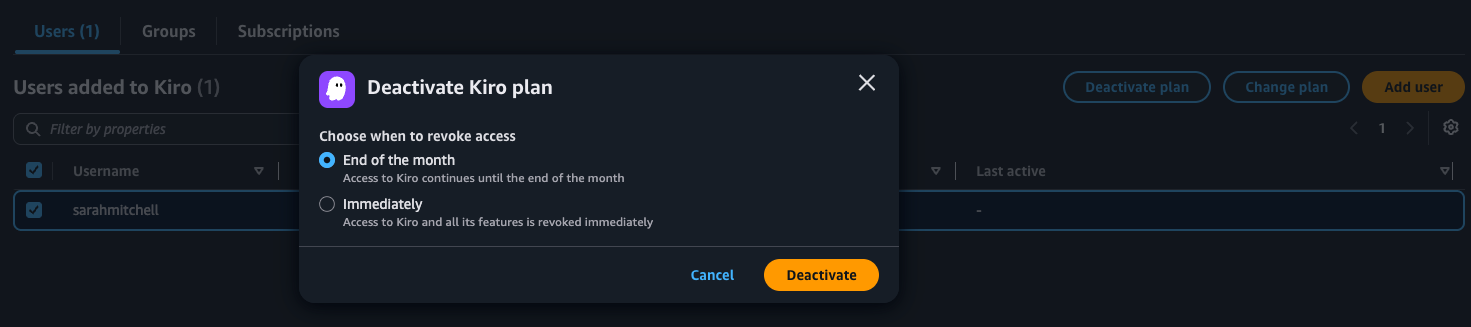
- Choose Deactivate plan. The selected subscription(s) will be canceled at the end of the month and will be marked as "Canceled" till then. You can choose when you want the user or group to stop accessing Kiro:
- End of the month: User or group will maintain access till the end of the month. Note - If you use AWS IAM Identity Center, you have to perform an additional clean up step Learn more.
- Immediately: User or group will lose access immediately.
If you use IAM Identity Center as your identity store for Kiro, an application is created in IAM Identity Center to track subscriptions. When you select the option to remove user or group access at the end of the month when deactivating subscription(s), Kiro cannot automatically remove the assignment in the IAM Identity Center Kiro application because Kiro service role doesn't have permissions to perform delete operation in IAM Identity Center application.
So to mitigate this, Kiro console will show a banner prompting you to perform the clean up operation after the subscription is canceled.
After the subscription(s) are cancelled at the end of the month, Kiro console will show you a banner prompting you for clean up, how many users and groups will be removed up and lets you remove them with one click.
Loading image...
In certain scenarios, user subscriptions are automatically canceled without requiring manual action from an administrator. This occurs when:
- User removed from IAM Identity Center – If a user is removed from IAM Identity Center, their Kiro subscription is automatically canceled.
- User removed from a subscribed group – If a user is removed from a group that has an active Kiro subscription, their subscription through that group is automatically canceled.
- IAM Identity Center instance deleted – If the IAM Identity Center instance associated with the Kiro profile is deleted, all user subscriptions under that instance are automatically canceled.
- Kiro profile deleted – If the Kiro profile is deleted, all associated user subscriptions are automatically canceled.
- User deactivated – If a single user is deactivated in IAM Identity Center, the user can no longer sign in to Kiro. However, deactivation alone does not cancel their subscription or remove them from subscribed groups. To stop billing, remove the user from the subscribed group or remove their individual subscription.
- AWS account deleted – If the AWS account that owns the Kiro profile is deleted, all subscriptions associated with that account are automatically canceled.
If your AWS account was previously suspended and later reinstated, the Kiro managed application in IAM Identity Center can be left in a disabled state. While it is disabled, attempts to subscribe users fail with the following error:
Unable to create subscription because your managed application is disabled in IAM Identity Center. Please re-enable the application in your IAM Identity Center settings.
This is a side effect of the suspension — reinstatement does not automatically re-enable the application.
An administrator with permissions to manage applications in IAM Identity Center (typically in your organization's management account) must perform the following steps. No support request is required.
To re-enable the application from the console:
- Sign in to the AWS Management Console and open the IAM Identity Center console.
- In the navigation pane, choose Applications.
- Find the Kiro managed application, named KiroProfile-<region> (for example,
KiroProfile-us-east-1). - Select the application and choose Enable.
- Return to the Kiro console and subscribe your users again.
Alternatively, re-enable it with the AWS CLI. First, find the ARN of your Kiro managed application (named KiroProfile-<region>) by listing the applications on your IAM Identity Center instance:
aws sso-admin list-applications --instance-arn <identity-center-instance-arn> --region <region>
Then re-enable that application, replacing <application-arn> with the ARN from the previous step and <region> with the AWS Region where your Kiro profile lives:
aws sso-admin update-application --application-arn <application-arn> --status ENABLED --region <region>
You might want to enable overages to give users the ability to continue working when they exceed their plan limits. Enabling overages has the following advantages:
- Uninterrupted productivity – When a user exceeds their plan's quota, they can continue working without disruption. The productivity benefits of continued access might outweigh the additional costs.
- Better usage pattern insights – Users get more accurate data about their actual usage, which helps in right-sizing future subscription needs.
By default, overages are disabled. Once enabled, overages become available to all users and groups in the profile. To enable overages:
- Sign in to the AWS Management Console.
- Switch to the Kiro console. If you don't see it, you might be in the wrong AWS Region.
- Choose Settings.
- Find the Kiro settings section.
- Turn on Overages.
Your AWS account has a default cap for overages that adjusts automatically based on your account's usage history and standing. To view or adjust the cap:
- Open the Service Quotas console (opens in the us-east-1 region).
- Search for Kiro in the AWS services field.
- Find the quota named Maximum allowed overage per Kiro profile — this controls the maximum allowed overage for every user in the Kiro profile.
You can also select the Manage link in the Overages setting in the Kiro console to navigate directly to the Kiro overage quota in Service Quotas.
If you need a cap higher than the automatic limit, request an increase through the same Service Quotas console.
You can view the status of your users' subscriptions on the Subscriptions page of the Kiro console. The statuses on the User tab are:
- Active – The user is subscribed to Kiro. You will be charged for active user subscriptions in the group.
- Canceled – The user subscription was canceled by an administrator. Unsubscribed users in the group can no longer access paid Kiro features. For more information, see Unsubscribe Kiro users.
- Pending – The user is subscribed but has not activated their subscription. You are not being charged for this subscription and there will be no data under Last active column.
If a subscriber appears in the Kiro console as a long identifier string instead of their user name and email, it means the underlying user ID no longer exists in your IAM Identity Center directory. The Kiro console resolves names and emails by looking up each subscriber's user ID in your current directory; when that user ID can't be found, the name and email are no longer available, so the console displays the raw ID instead.
This can happen when:
- A user was deleted from IAM Identity Center. Once the user is deleted, their user name, email, and other attributes are no longer available to display — only the ID remains on the subscription record.
- You changed your IAM Identity Center identity source. Some changes (for example, to or from AWS Managed Microsoft AD, or between an external identity provider and the Identity Center directory) re-create all of your users with new IDs and remove the old ones, so subscriptions created under the previous user IDs can no longer be resolved. For more information, see Considerations for changing your identity source in the AWS IAM Identity Center User Guide.
This is expected behavior and does not affect your other, resolvable subscriptions. For administrators, no action is required: because the underlying user no longer exists, the subscription is no longer in use, and it is automatically canceled at the start of the following month (see Automatic subscription removal). After it is canceled, the entry no longer appears in the console and you are no longer charged for it.
Managing Kiro subscriptions