Kiro's interface is designed to provide a seamless coding experience with AI assistance integrated throughout.
Kiro's interface is divided into the following main components:
- Editor - The central workspace where you write and edit code.
- Chat Panel - A dedicated panel for interacting with AI, including asking questions, requesting code modifications, and receiving AI responses.
- Views - The sidebar contains specialized views for managing project files, searching, and source control.
- Status Bar - Provides information about the current file, Git status, and error/warning counts.
- Command Palette - A quick access tool for executing common actions and accessing AI tools.
Loading image...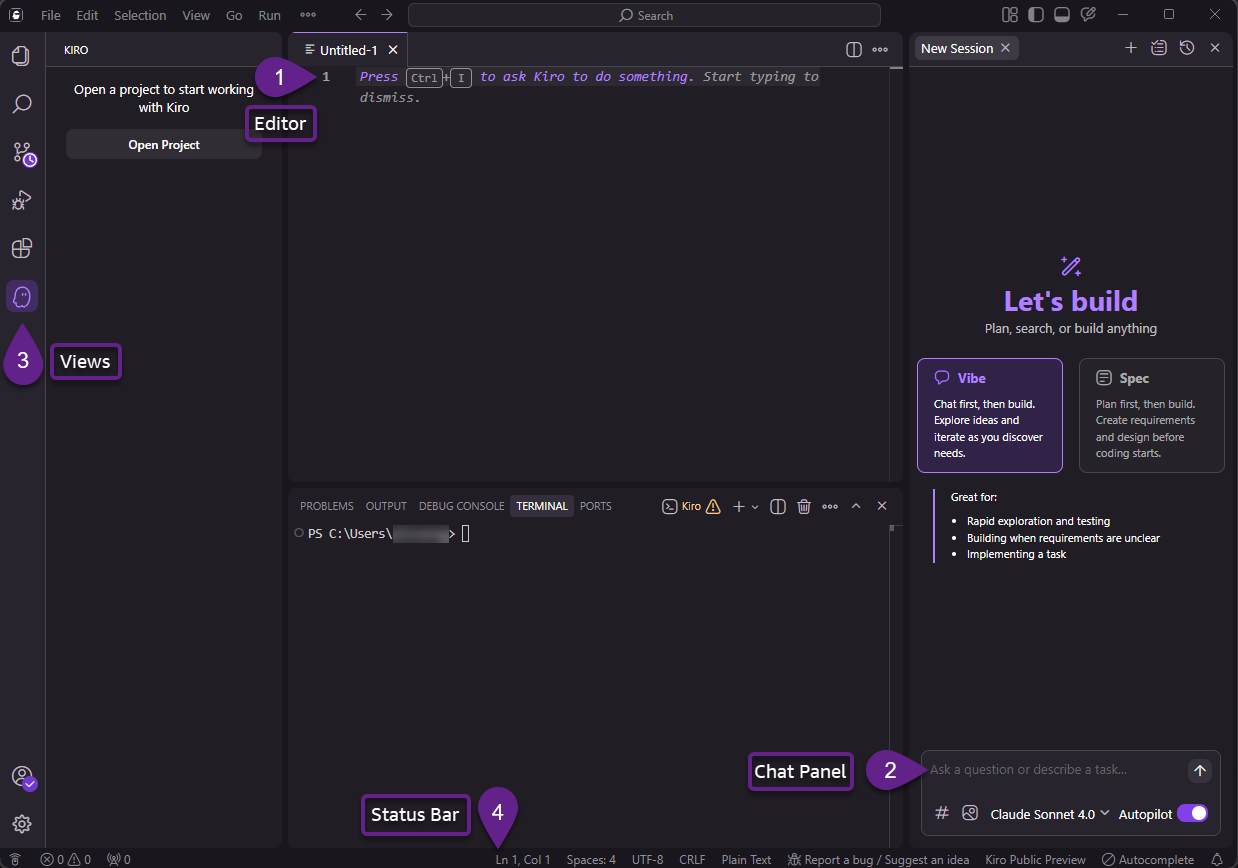
The central workspace where you write and edit code. Features include:
- Syntax highlighting for multiple languages
- Line numbers and error indicators
- Code folding for better organization
- Multiple tabs for working across files
- Split view support for side-by-side editing
You can use the chat panel to:
- Ask questions about your code
- Request code generation or modifications
- Get help with debugging and troubleshooting
- Ask for code reviews and optimization suggestions
- Include context with # commands (e.g., #File, #Folder)
- Generate boilerplate code and templates
To move the chat panel to the opposite side of the IDE
In the top menu bar, choose View > Appearance > Move Primary Side Bar Right.
The sidebar contains several specialized views:
-
Explorer - Navigate your project file structure, see Git status indicators, and access special sections for Specs and MCP servers.
-
Search - Perform global search and replace operations across your entire project.
-
Source Control - Manage Git operations, view changes, and handle commits with AI-generated commit messages.
-
Run and Debug - View variables, call stacks, and manage breakpoints during debugging sessions.
-
Extensions - Install and manage IDE extensions.
-
Kiro - A dedicated view for AI-specific features:
- Specs overview and management
- Agent Hooks management
- Agent Steering configuration
- MCP (Model Context Protocol) servers
- Declarative workflow runs in the active parent session
Open a project's Workspace Configuration to manage project-specific agent features. When workflows are available for your account, choose Workflows there to enable declarative workflows for new chat sessions. See Turn on workflows.
Located at the bottom of the interface, the status bar provides:
- Current file information
- Git branch and sync status
- Error and warning counts
- Agent status indicators
Access Kiro's commands quickly by pressing Cmd+Shift+P (Mac) or Ctrl+Shift+P (Windows/Linux) to:
- Execute common actions
- Access MCP tools
- Configure settings
- Run agent hooks
- Use keyboard shortcuts for faster navigation
- Leverage the command palette for quick access to features
- Pin frequently used files for easy access
- Use split views for comparing or referencing code
- Configure workspace settings for personalized experience
Kiro Interface