The easiest way to understand a cloud session is to see it in action. This walkthrough starts a task from Kiro Web, shows what happens inside the cloud session, and follows the work through to a pull request, so you can tell what runs remotely, what stays on your machine, and where you stay in control.
A cloud session runs the Kiro agent in an isolated cloud sandbox instead of on your machine. You send tasks and steer the work from any client, whether Web, the IDE, the CLI, or Mobile, and Kiro does the work in the cloud against your repository.
This guide covers:
- What a cloud session is
- When to use one
- What keeps it safe
- How to keep your configuration consistent between local and cloud sessions
A cloud session is a development environment that runs on cloud infrastructure instead of on your local machine. You interact with it through a client: Kiro Web, the IDE, the CLI, or Mobile. The work itself happens remotely. Your code, tools, compute, and running processes live in the cloud environment, while your device is primarily the interface you use to control the session.
Loading image...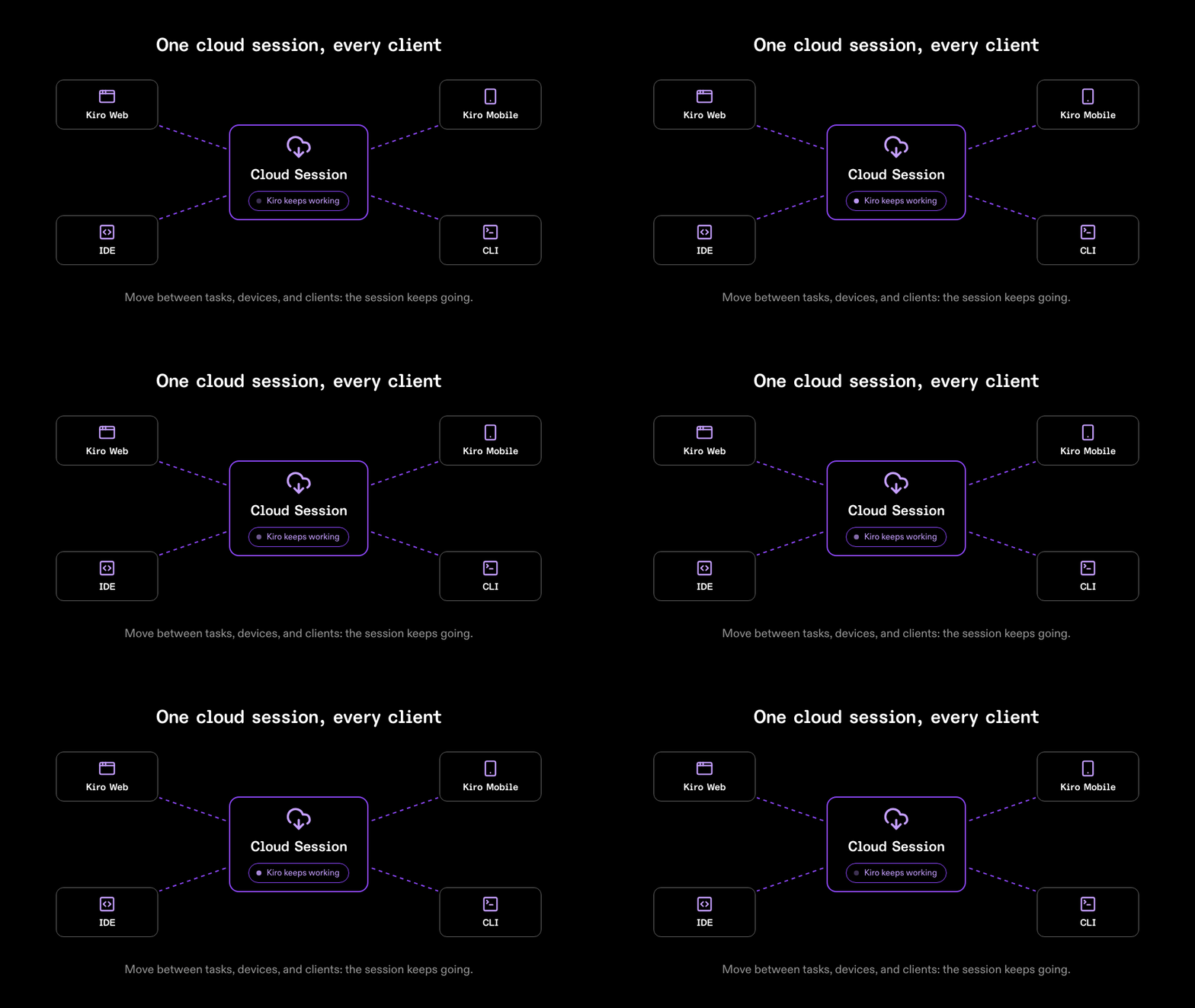
You can think of it as an isolated sandbox in the cloud, already set up for the task at hand. Instead of relying on your laptop's CPU, memory, and local environment, you send work there and let it run. Because the sandbox is isolated and its network access is something you configure, you can let the agent work on its own without watching every step.
This separation is what makes cloud sessions especially useful for longer-running or more autonomous work. Because execution happens independently of your local machine, Kiro can keep working without tying up your laptop or requiring you to keep the same client open. You can move on to another task, start another session in parallel, or reconnect from a different client while the work continues in its own environment.
That separation also means your cloud session does not automatically have access to everything on your local machine. It cannot read your local files or your local ~/.kiro configuration. Any steering files, agents, or skills you rely on locally need to be made available to the cloud session deliberately.
Configuration Sync is how you make that personal configuration available to your cloud sessions.
With Kiro Web and Mobile you are always working through a cloud session, so the choice of local or cloud only comes up in the IDE and CLI. The question there is when to reach for the cloud.
Reach for a cloud session when the work fits remote execution better than your laptop:
- The task is long-running or autonomous, so an overnight refactor or a large migration does not depend on your machine staying awake.
- You want to run several tasks at once. Each cloud session is its own isolated environment, so parallel work does not compete for your local CPU or memory.
- You are away from your setup. You can start or check on work from the browser or your phone, with nothing installed.
Stay local when the work is tied to your machine:
- You are iterating quickly and want your own editor and local files, with changes and command output showing up right away.
- You want to work directly with the files as you go, opening them and their diffs in the editor or approving changes one at a time. Because a cloud session keeps its files in a sandbox rather than your local workspace, these file-level actions are not available in a cloud session.
- The work depends on local tools, services, or data that are not in the repository.
A cloud session does real work on its own: it runs commands and edits code without you watching each step. So it is worth knowing what contains it and where you stay in control, at each stage of a task.
Entering the session (what gets loaded into the sandbox): Kiro clones the repository from your connected GitHub or GitLab, so it works from what is in the repository. Even when you start a cloud session from your IDE or CLI, your working copy is not sent and your local configuration stays on your machine.
During the session: the agent runs in an isolated sandbox.
- Configurable network access: you choose how much of the internet the sandbox can reach, and match the level to what the task actually needs.
- Repository access only: the agent reaches only your connected repositories and pull requests. This is the most secure level.
- Common dependencies: this adds popular package registries and development tools, so the agent can install dependencies. The docs list the domains that are automatically allowed, and you can extend the set with a custom allow-list.
- Open internet: the agent has unrestricted internet access. Opening up network access raises risks like prompt injection and secret extraction inside the sandbox. The sandbox is still isolated in the cloud, so it cannot reach your local machine.
- Scoped access: because you scope its access when you connect GitHub or GitLab, the agent can only touch the repositories you chose.
- Secrets and credentials: you can give the sandbox environment variables for config and secrets for sensitive values like API keys. Secrets are encrypted at rest and injected only into the isolated sandbox at runtime. Be careful, though: as with any agent that runs with a live secret, it could expose one through the code it writes, its logs, or a network request. This is exactly why the layers work together. Isolation, a tighter network access level, and scoped repository access each limit where a secret could go, so provide only the secrets a task needs and keep the risk minimal.
Leaving the session: you approve what comes out. The agent never pushes to your main branch. It opens a pull request and waits for you to review the changes before they merge.
Across all three stages, no single layer carries the whole load. Together they keep a cloud session useful while holding the risk down.
Loading image...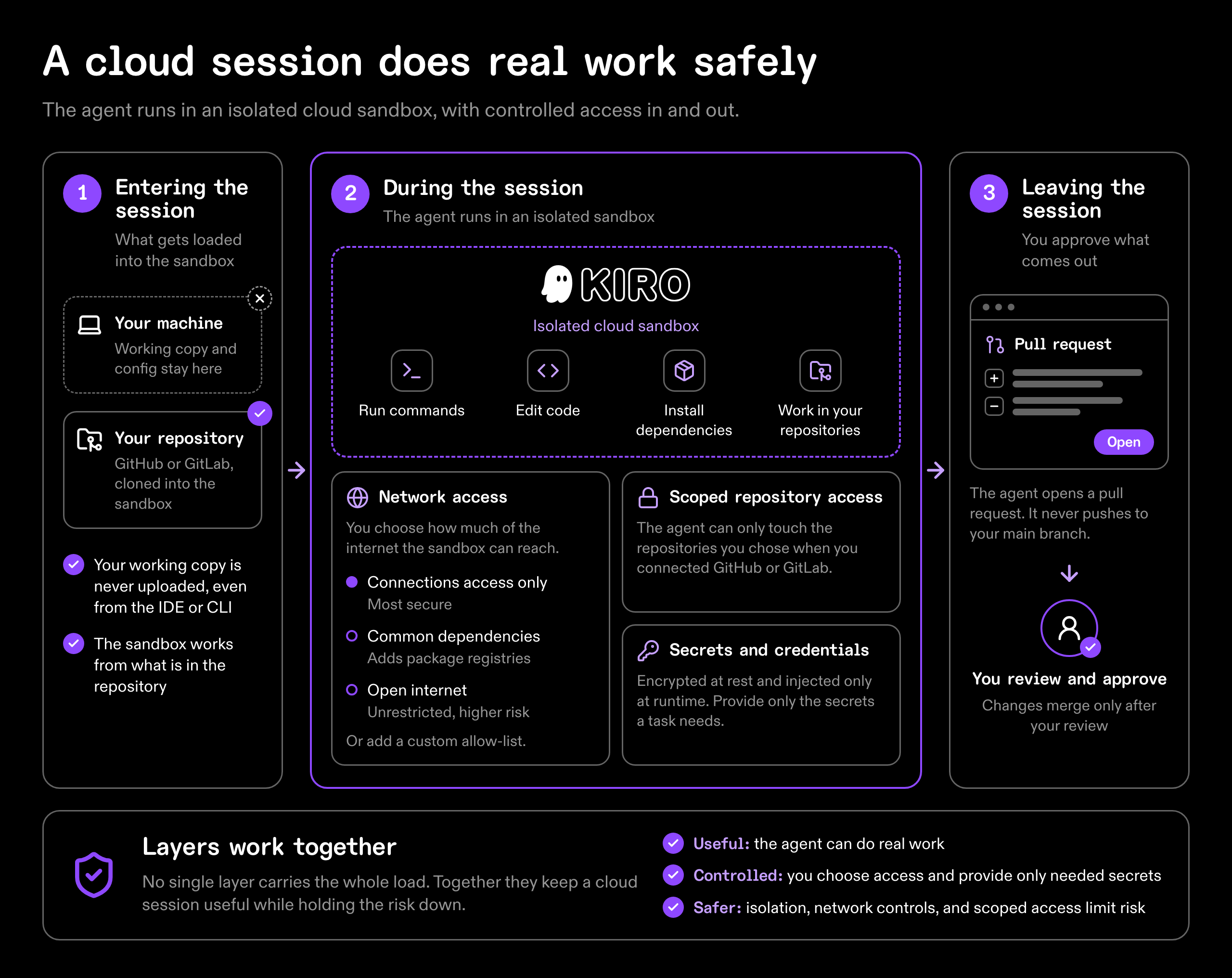
As we mentioned earlier, your cloud session does not automatically have your local ~/.kiro configuration, and Configuration Sync is how you bring it across. Here is how that works.
Kiro configuration has two scopes: project configuration and personal configuration.
Project configuration is stored with your repository under .kiro/. Because it is part of the repository, it follows the project automatically when you start a cloud session.
Personal configuration belongs to you rather than to a specific project. It can exist in two places:
- Local personal configuration is stored under your local
~/.kirodirectory. - Cloud-managed personal configuration is stored as an account-backed cloud copy and is available to your cloud sessions.
Personal configuration can move across the local-cloud boundary in two ways:
-
Local to cloud sessions: Use Configuration Sync to manually upload supported folders from your local
~/.kirodirectory. This creates or updates the cloud copy, which applies automatically to cloud sessions. -
Cloud into local sessions: If you create or edit configuration in Kiro Web, enable Apply your cloud configuration to local sessions. New IDE and CLI sessions then load the cloud copy when they start.
If you already have personal configuration locally, start by uploading it through Configuration Sync. If you are starting fresh, you can create your personal configuration directly in Kiro Web.
For the most consistent experience, once your cloud copy is set up, enable Apply your cloud configuration to local sessions and make ongoing changes to the cloud-managed configuration. If you make changes to your local configuration files instead, run Configuration Sync again to upload them, since file synchronization currently works only from local to cloud.
Loading image...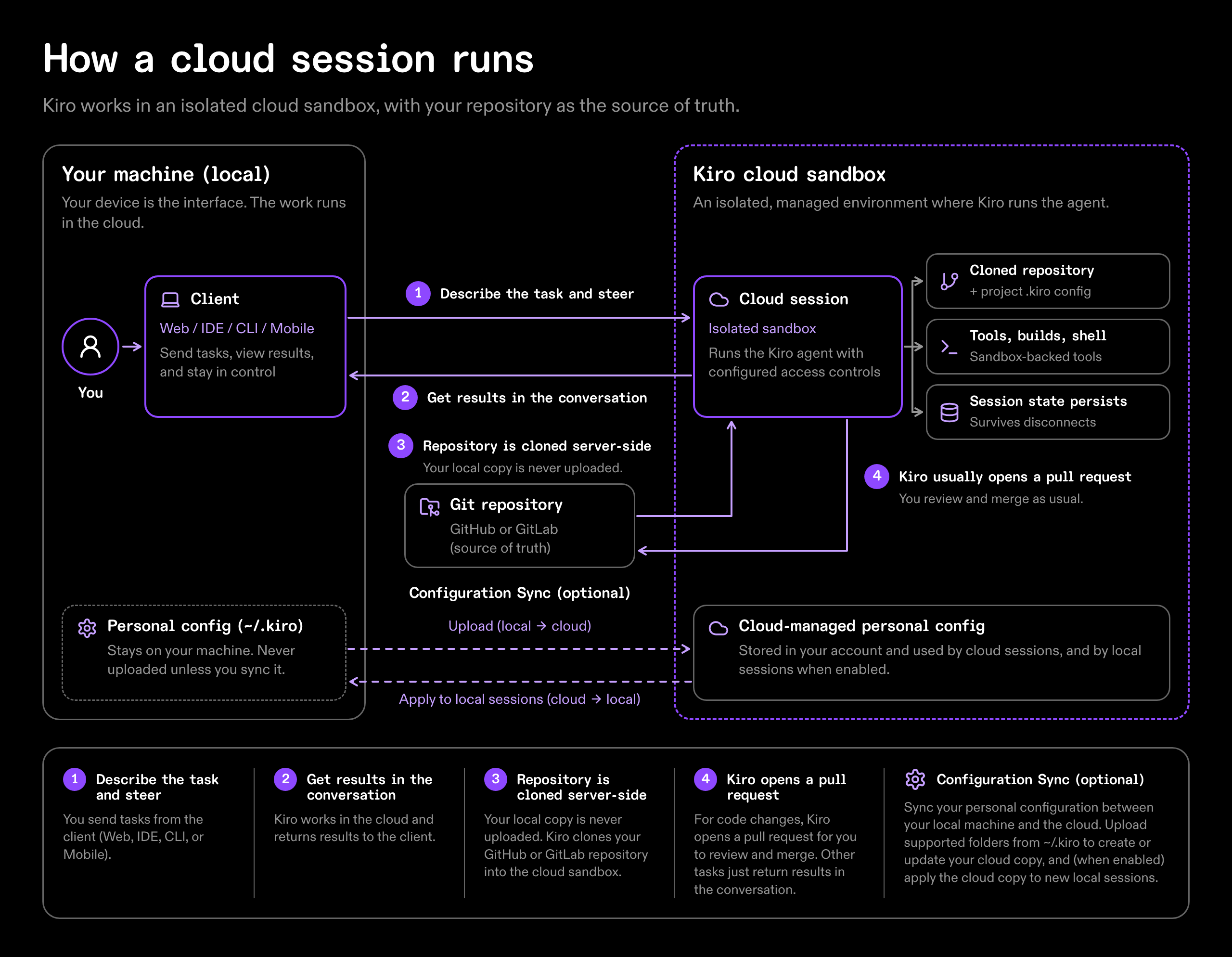
Open Kiro Web, connect a repository, and start working with your project in a cloud session.
- Cloud sessions - how sessions are provisioned and how each client attaches to them
- Kiro Web - the browser-native cloud session experience
- Sandbox - network access, environment variables, and environment configuration
- Configuration scopes - where settings live and how they travel
Running Kiro in the cloud