Model access management controls which models your users can select in their clients.
- Disabled: All models are available, except Claude Fable 5.1 and Kimi K3.
- Enabled: Only models selected in Manage approved list are available. New models are selected automatically as Kiro adds them. Claude Fable 5.1 and Kimi K3 are exceptions: they appear in the list unselected, and users cannot see them until an administrator selects them and saves the list.
Claude Fable 5.1 is generally available to Kiro Enterprise organizations. Inference runs only in US East (N. Virginia) (us-east-1). Organizations can enable Fable 5.1 through model governance.
After model access management is enabled, administrators can select Fable 5.1 in Manage approved list and save the list. Fable 5.1 then appears in the model selector across the Kiro IDE, CLI, and Web after users restart or refresh their client. See Claude Fable 5.1 for pricing and complete data-handling details.
To opt into managing the models list:
- Open the Kiro console.
- Choose Settings.
- In the Shared settings section, toggle the Control which models are available to users under the Model availability setting.

To add models to the list of models available in Kiro clients:
- Select the Manage approved list link in the Model availability setting.
- A modal dialog will show the list of models that are available to manage including "Auto"
- Each model will have a name and description.
- Review each model's inference scope and endpoint location against your organization's data residency and compliance requirements.
- Select the models that you want to make available to the clients.
- Set a default model. The default model is automatically applied to all clients in your organization.
- Select Save list to save the model list.
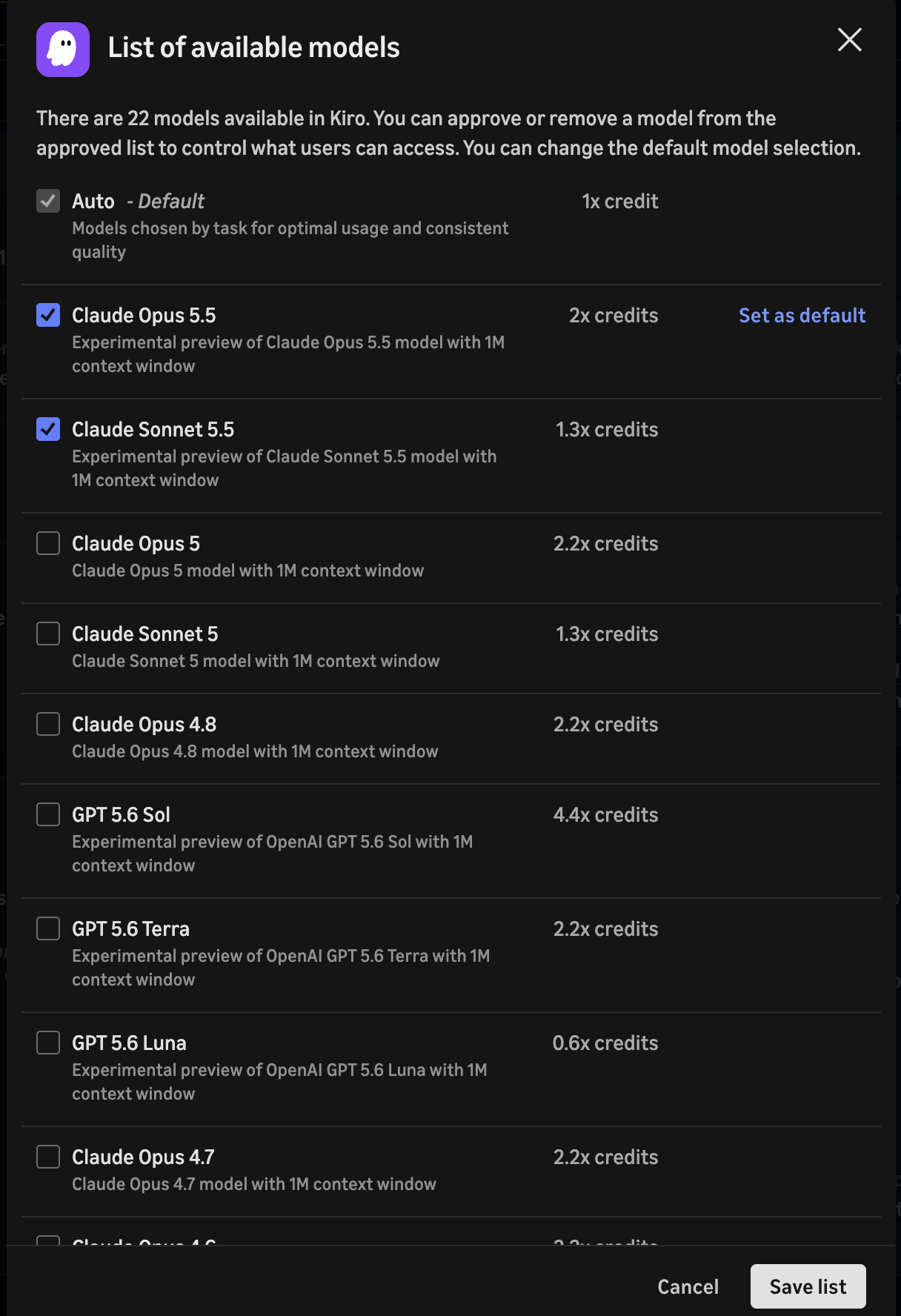
To remove models from the allow list, simply uncheck the models from the allow list of models.
Keep in mind, removing a model that was previously available will not be immediately removed from the client. Clients have to restart their session.
- New models are selected automatically, except Claude Fable 5.1 and Kimi K3. To block a new model, uncheck it in Manage approved list and save the list.
- You will receive a notification in the console when a new model becomes available.
- Kimi K3 and models designated as experimental, pre-release, preview, or beta are Kiro Excluded Models. Review that section before you add them to the approved list.
Models