Referrals
Enterprise users can generate referral codes in Kiro Web and share them with friends and family. Each code gives the person who redeems it 20% off any paid individual Kiro plan (Pro, Pro+, Pro Max, or Power) for 12 billing cycles. Referrals are off by default; an administrator turns them on for the organization in Controls.
- Administrators: Turn on referrals for your organization.
- Enterprise users: Generate and share a code.
- Someone gave you a code: Redeem a code.
Loading image...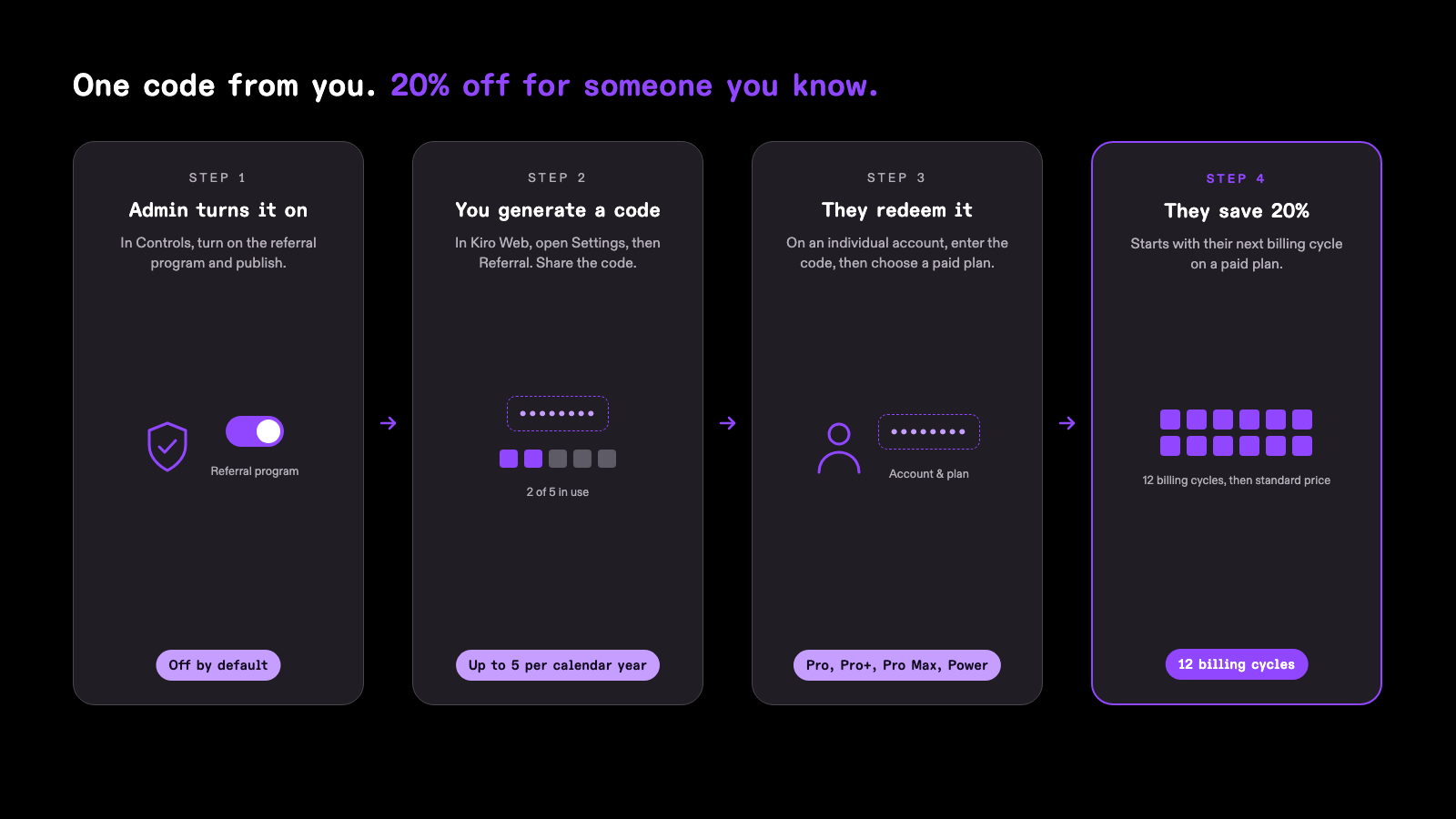
| Step | Who | Where | What happens |
|---|---|---|---|
| 1 | Administrator | Controls in the AWS console | Turns on referrals for the organization |
| 2 | Enterprise user | Kiro Web, signed in with the enterprise login | Generates a code and shares it |
| 3 | Person you share with | Kiro Web, signed in with an individual account | Enters the code, then chooses a paid plan |
| 4 | Person you share with | Billing | Gets 20% off for 12 billing cycles once on a paid plan |
Your enterprise login generates codes but can't redeem them. To redeem a code, including one you generated, sign in with an individual Kiro account.
When you turn referrals on, employees and contractors with Kiro access under the account can generate referral codes for personal use.
You need to be an administrator of the AWS account that owns the profile, and the profile must use Controls. To turn referrals on:
- In the AWS console, open Kiro > Controls, then open the control attached to your profile.
- Choose Edit.
- In the Form view, turn on Kiro Enterprise Employee Referral Program. In the YAML view, set
employee_discount.enabled: trueundersettings. - Choose Publish.
To verify, ask a user on the profile to open Settings in Kiro Web. Referral appears in the list, with Codes left to generate.
If you turn referrals off later, users can no longer generate new codes. Codes that were already shared or redeemed stay valid.
- Sign in to Kiro Web with your enterprise login.
- Open Settings, then Referral.
- Choose Generate code. The new code appears under Available codes.
- Copy the code and send it to a friend or family member, or use it on your own individual account.
By generating a code, you agree to the Kiro Employee Discount Program Rules. Each code can be redeemed once and is valid for 30 days after you generate it.
Settings > Referral shows three counts:
- Codes left to generate: how many codes you can still generate this calendar year, out of 5.
- Pending redemption: codes someone entered but has not used on a paid plan yet.
- Redeemed: codes that have given someone the discount.
Below the counts, the list shows every code you generated, with its status and expiry date.
| Status | Meaning |
|---|---|
| Available | You generated the code and nobody has entered it yet. |
| Pending | Someone on the Free plan entered the code and has not chosen a paid plan yet. |
| Redeemed | The person who entered the code is on a paid plan. A code entered on a paid plan is redeemed right away. |
| Expired | Nobody redeemed the code within 30 days of when you generated it. A pending code can also expire. |
You can have up to 5 codes in use each calendar year. Available, pending, and redeemed codes count toward the limit, including a code you use on your own account. When a code expires, it no longer counts, and Codes left to generate goes back up by one.
To redeem a code someone shared with you:
- Sign up for Kiro with an individual account, or sign in if you already have one. Enterprise logins can't redeem codes.
- In Kiro Web, open Settings, then Account & plan.
- Enter the referral code.
- Check the confirmation that the code is applied.
- Choose a paid plan: Pro, Pro+, Pro Max, or Power.
If the code is invalid, expired, or already used, you see an error message. Ask the person who shared it for a new code.
The 20% discount applies for 12 consecutive billing cycles. After that, you pay the standard price. When it starts depends on your plan when you enter the code.
| You enter the code while on | Code status | Discount |
|---|---|---|
| A paid plan | Redeemed right away | Starts with your next billing cycle |
| The Free plan | Pending until you choose a paid plan | Starts with your first full bill after you upgrade |
If this is your first upgrade from the Free plan, the free trial applies first: the rest of your first month on Pro is free. On Pro+, Pro Max, or Power, you pay the prorated difference from Pro for that first month, without the referral discount. The 20% discount starts with your first full bill.