Autopilot mode is Kiro's autonomous execution mode that allows the agent to make code changes across your codebase and complete complex tasks with minimal intervention. It's a key feature that enables Kiro to work more independently on your behalf.
Kiro works autonomously to complete tasks end-to-end. It can create files, modify code across multiple locations, run commands, and make architectural decisions without asking for approval at each step. You maintain control through the ability to view all changes, revert everything, or interrupt execution at any time.
Kiro yields for your approval after each turn that contains file edits. Changes are presented as individual hunks, giving you fine-grained control to accept, reject, or discuss specific parts of each modification. You can also accept changes at the file level or accept all changes at once to continue. This approach gives you full visibility into each change and lets you guide the development process to maintain code quality standards.
You can toggle between Autopilot and Supervised modes at any time using the autopilot switch in the chat interface, or set it in Settings → Agent → Agent Autonomy (settings key: kiroAgent.agentAutonomy). This flexibility allows you to use the appropriate level of control for different tasks.
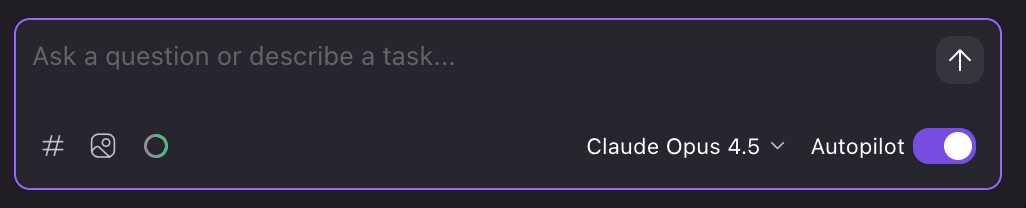
The autonomy mode works in conjunction with the permissions system: the mode is the coarse control, permission rules are the fine one. The capability-based permissions layer applies after the autonomy mode determines whether to proceed. In Autopilot, allowed operations run without prompting while your deny and ask rules still gate specific capabilities. In Supervised, the agent prompts before actions regardless. Together, these two layers give you coarse-grained control (Autopilot vs Supervised) plus fine-grained rules (permissions.yaml) for specific capabilities.
- Experienced users familiar with Kiro's capabilities
- Repetitive or well-defined tasks
- Projects where you want to move quickly
- Tasks spanning multiple files or requiring several steps
- New users getting familiar with Kiro
- Critical or sensitive codebases
- Learning how Kiro approaches problems
- When you want to carefully review each change
- Working with unfamiliar code or complex systems
You can toggle between these modes at any time based on your current needs and comfort level with the task at hand.
In Autopilot mode, Kiro works autonomously and can make multiple changes to your codebase without requiring approval for each individual action.
However, you still maintain control over these changes through several key features:
- View All Changes
- You can see a comprehensive list of all modifications made by selecting the "View all changes" option in the Chat module
- This gives you visibility into everything Kiro has done across your codebase
- Changes are presented in a diff view that clearly shows what was added, modified, or removed
- Revert All Changes
- If you're not satisfied with the changes Kiro has made, you can select "Revert"
- This will restore your files to their previous state in the filesystem locally
- This is essentially an "undo" function for all of Kiro's modifications
- Note that you can also revert to a checkpoint, which will revert both file changes as well as context additions
- Interrupt Execution
- You can interrupt Autopilot mid-execution to regain manual control
- This stops Kiro from making further changes if you notice something going wrong
In Supervised mode, Kiro yields for your approval after each turn that contains file edits. This turn-based approach works in both vibe chat and spec chat sessions.
- Review changes
- Kiro shows you exactly what has been modified, with line change indicators (+x -y lines) visible in chat
- Review each change to ensure it meets your project requirements
- Per-file review
- When multiple files are edited, review each file individually
- Accept or reject changes on a per-file basis
- Hunk-based review
- For file modifications, Kiro presents changes as individual hunks (logical groups of related lines)
- Each hunk can be independently accepted, rejected, or modified with inline chat
- This gives you fine-grained control over exactly which parts of a change to keep
- Per-hunk actions
- Accept - Apply this specific hunk to your file
- Reject - Discard this hunk while keeping others
- Chat inline - Start an inline conversation about this hunk to request adjustments or ask questions
- Selective approval
- You can accept some hunks while rejecting others within the same file
- This lets you keep the parts of a change you like while discarding the rest
- Kiro continues working with your selective approval, adapting to your preferences
- Accept All / Reject All
- Accept All applies all pending changes and continues execution
- Reject All reverts all changes and lets you provide feedback for a different approach
Autopilot