Kiro's terminal integration lets the agent run shell commands on your behalf. Describe what you want in natural language, like installing dependencies, checking git status, or running tests, and Kiro translates your request into the appropriate command. A built-in approval system keeps you in control of what executes.
Loading image...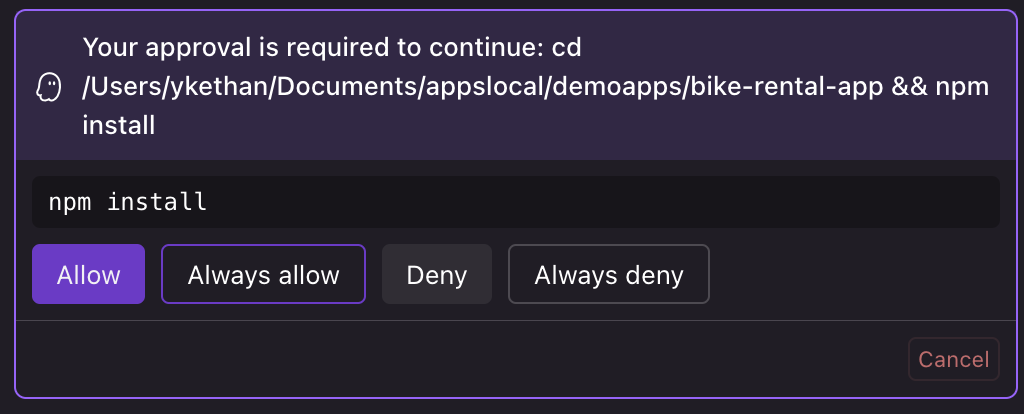
When Kiro suggests a command, you can Allow or Deny that invocation. When Kiro can derive a saved rule that will work for the command, it also offers persistent choices:
- Always allow: Execute and trust similar commands in the future
- Always deny: Block similar commands going forward
If Kiro cannot verify a working saved rule, it hides the persistent choices and explains why in the prompt.
You control which commands require approval through the Permissions system. Define shell capability rules in your permissions.yaml to allow, deny, or prompt for specific command patterns:
# ~/.kiro/settings/permissions.yaml
rules:
  - capability: shell
    match: ["git *", "npm *", "npx *"]
    effect: allow

  - capability: shell
    match: ["rm -rf *", "sudo *"]
    effect: deny
For the full reference on configuring shell permissions, see Permissions.
On Windows, agent commands run in the shell configured as your default terminal profile. Supported profiles include PowerShell, Command Prompt, Git Bash, and WSL.
Kiro reuses an agent terminal only when its shell matches your configured profile. This prevents commands from running in a terminal created for a different shell.
To change how long a local agent-run terminal command can run by default, open Settings and search for kiroAgent.terminalCommandTimeout. Enter a whole number of milliseconds. Values below 1000, fractional values, and nonnumeric values are treated as unset; values above 1800000 are clamped to 1800000. If the setting is empty, Kiro uses the built-in default of 120000 milliseconds (two minutes).
Changes apply to the next command in open local sessions without a restart. A command-specific timeout takes precedence over this default. Cloud sessions use the built-in default.
Reference recent output from your active terminal in your conversations with #terminal. Important: #terminal always refers to the currently active/visible terminal window. If you have multiple terminals open, make sure the terminal you want to reference is active before using #terminal in your chat.
This feature allows Kiro to analyze command results, debug errors, and suggest solutions based on your actual terminal session.
#terminal analyze the error from the last npm run build
Kiro maintains awareness of command history and outputs, enabling:
- Error Analysis: Understanding why commands failed with specific error messages
- Output Interpretation: Explaining complex command results and logs
- Follow-up Actions: Suggesting next steps based on actual results
- Pattern Recognition: Identifying recurring issues across multiple commands
- Environment Debugging: Helping resolve system and dependency conflicts
For issues with terminal integration and manual setup instructions, see the Shell Integration troubleshooting guide.
Terminal integration