Loading image...Kiro

Product

  • About Kiro
  • Agents
  • IDE
  • CLI
  • Web
  • Mobile
  • Crew
  • Pricing
  • Downloads

For

  • Enterprise
  • Startups
  • Students

Community

  • Overview
  • Ambassadors
  • Case studies
  • Discord
  • Events
  • Powers
  • Shop
  • Showcase

Resources

  • Docs
  • Blog
  • Changelog
  • FAQs
  • Videos
  • Report a bug
  • Suggest an idea
  • Billing support

Social

Site TermsLicenseResponsible AI PolicyLegalPrivacy PolicyCookie Preferences
Kiro
  • Agents
  • Enterprise
  • Pricing
  • Docs
SIGN INDOWNLOADS
Kiro

Get Started

InstallationAuthenticationYour first project

Models

OverviewAvailable modelsReasoning effortAWS GovCloud (US) models

Features

How Kiro worksLocal command sandboxACP integrations
Specs
Steering
Hooks
MCP
Permissions
Custom agents
Workflows
Agent Skills
Powers
Cloud sessionsMemoryCompactionKiroignoreCheckpoints and rewind
Built-in tools
Configuration scopes

IDE 1.x

What's new in 1.0
Setup & First Run
Editor
Chat
Autopilot
Agent Artifacts
Slash commands
Agent notifications
Dockable chat
Export sessions
Terminal
Dev servers
Experimental
Troubleshooting0.x reference

CLI

What's new in V3
Setup & First Run
Terminal UI
Chat
Fullscreen modeVoice modeHeadless modeACPAuto complete
Experimental
2.x reference

Crew

Quick startInstallationRunning 24/7
Chat
Agent Capabilities
Features
Interfaces
Apps
System & storageConfigurationSecurityTroubleshooting

Web

Setup & First RunIdentity Center
Connect your repositories
Working with the agent
Autonomous modeScheduleConfiguration Sync
Sandbox

Mobile - Preview

Overview

Commands and Reference

CLI commandsSlash commandsBuilt-in toolsExit codesSettings

Billing

OverviewManaging your subscriptionUpgrading your planDowngrading your planCancelling your planPurchasing add-on creditsManaging your paymentsManaging usage notificationsManaging your taxesContacting billing supportDeleting your accountRelated questions

Enterprise

ConceptsOnboarding quickstart
Connecting your identity provider
Deployment optionsSubscribe your teamManage subscriptions
Governance
Monitor and track
SettingsManaged updatesTLS inspection compatibilityBillingIAMSupported regions
AWS GovCloud (US)

Privacy and Security

OverviewData protectionCode referencesCompliance validationInfrastructure securityIAM permissionsFirewalls, proxies, and data perimetersVPC endpoints (AWS PrivateLink)

Guides

OverviewRunning Kiro in the cloud
Language support
Learn by playing

Migration

Migrating from Q DeveloperMigrating from VSCodeUpgrading from Q CLI
  1. Docs
  2. IDE 1.x
  3. Chat
  4. Agent notifications
View as Markdown

Agent Notifications

View as Markdown

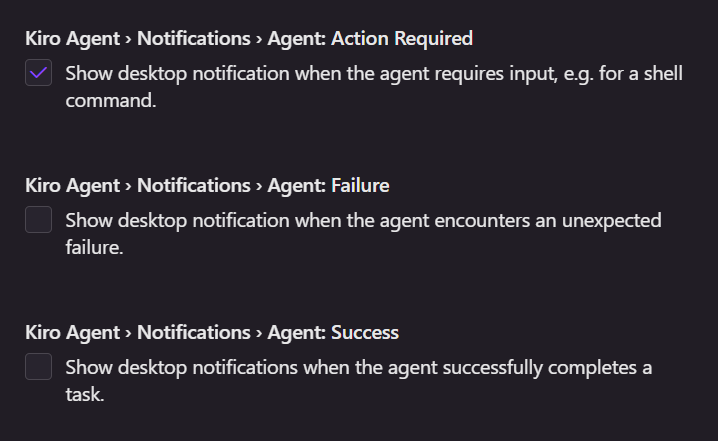
Kiro agent notifications provide native system notifications for important agent execution events. These OS-level notifications ensure you stay informed about agent progress even when Kiro is running in the background or you're working in other applications.

Loading image...Kiro Agent Notification Setting
Tip

You can also configure usage notifications to help you monitor your credit consumption and avoid unexpected charges. For more information, see Managing proactive usage notifications.

Agent notification types

  • Action Required - Agent needs user input or approval to continue (e.g., permission to run shell commands)
  • Success - Agent execution completes successfully (e.g., spec task completion, code generation finished)
  • Failure - Agent execution encounters an error or fails (e.g., spec creation failure)

Configuring agent notifications

  1. Open Settings: Command Palette (⌘/Ctrl + Shift + P).
  2. Search for Agent: Notifications. The various Agent notification types will be listed.
  3. Select the specific Agent notification types that you'd like to enable.

You can disable notifications by unselecting the checkbox next to each notification type.

Troubleshooting agent notifications

If agent notifications are not appearing, work through the following checks:

  1. Verify Kiro notification settings - Follow the steps in Configuring agent notifications above to confirm the notification types you want are enabled.

  2. Check system notification permissions

    macOS:

    • Go to System Settings → Notifications and find Kiro in the application list.
    • Ensure Allow notifications is toggled on and the alert style is set to Banners or Alerts (not None).

    Windows/Linux:

    • Verify that Kiro has permission to send notifications in your OS notification settings.
  3. Check Do Not Disturb / Focus mode

    macOS: Check that Focus mode is not active in System Settings → Focus or by clicking the Control Center icon in the menu bar.

    Windows: Ensure Focus Assist / Do Not Disturb is turned off in Settings → System → Notifications.

  4. External monitor or screen sharing (macOS) - macOS suppresses notifications by default when mirroring or sharing your display. In System Settings → Notifications, under Show Notifications, set when mirroring or sharing the display to Allow Notifications.

  5. Restart Kiro - If notifications stop working after changing system settings, restart Kiro to pick up the changes.

Page updated: August 4, 2026
Slash commands
Dockable chat